How to Upgrade Workspace Plans in Qualz.ai
Upgrade your Qualz.ai workspace – learn how to move from Standard to Professional or Enterprise tier to unlock advanced features, multiple workspaces, and expanded team collaboration.
What is Workspace Plan Upgrade?
Workspace plan upgrade allows you to move from a lower tier to a higher tier, unlocking additional features, capabilities, and limits. Upgrading gives you access to more workspaces, team members, and research tools.
Available upgrade paths:
- Standard → Professional – Unlock multiple workspaces and advanced features
- Standard → Enterprise – Get enterprise-grade security and unlimited scale
- Professional → Enterprise – Add SSO, compliance, and dedicated support
Why Upgrade Your Workspace?
Unlock Multiple Workspaces
Standard limitation: 1 workspace only Professional benefit: Create multiple workspaces for different clients or projects
Expand Team Collaboration
Standard limitation: Limited member management Professional benefit: Up to 10 members per workspace with advanced roles
Remove Research Limits
Standard limitations:
- Maximum 2 interviews
- Maximum 2 surveys
Professional benefits:
- Unlimited interviews and surveys
- No research restrictions
Access Premium Features
Professional exclusive features:
- Priority support
- Advanced analytics
- Dedicated onboarding
- Discounted credit purchases (25% off)
Enterprise exclusive features:
- SSO integration
- GDPR and SOC2 compliance
- Custom workflows
- Dedicated account representative
Step 1: Access Workspace Subscription Plans
Navigate to your workspace plan management area.
Open Plan Section
- Click on your workspace name in the top-left corner
- Navigate to workspace overview
- Click the "Plan" tab in the navigation bar
- Or click "Overview" and scroll to subscription section
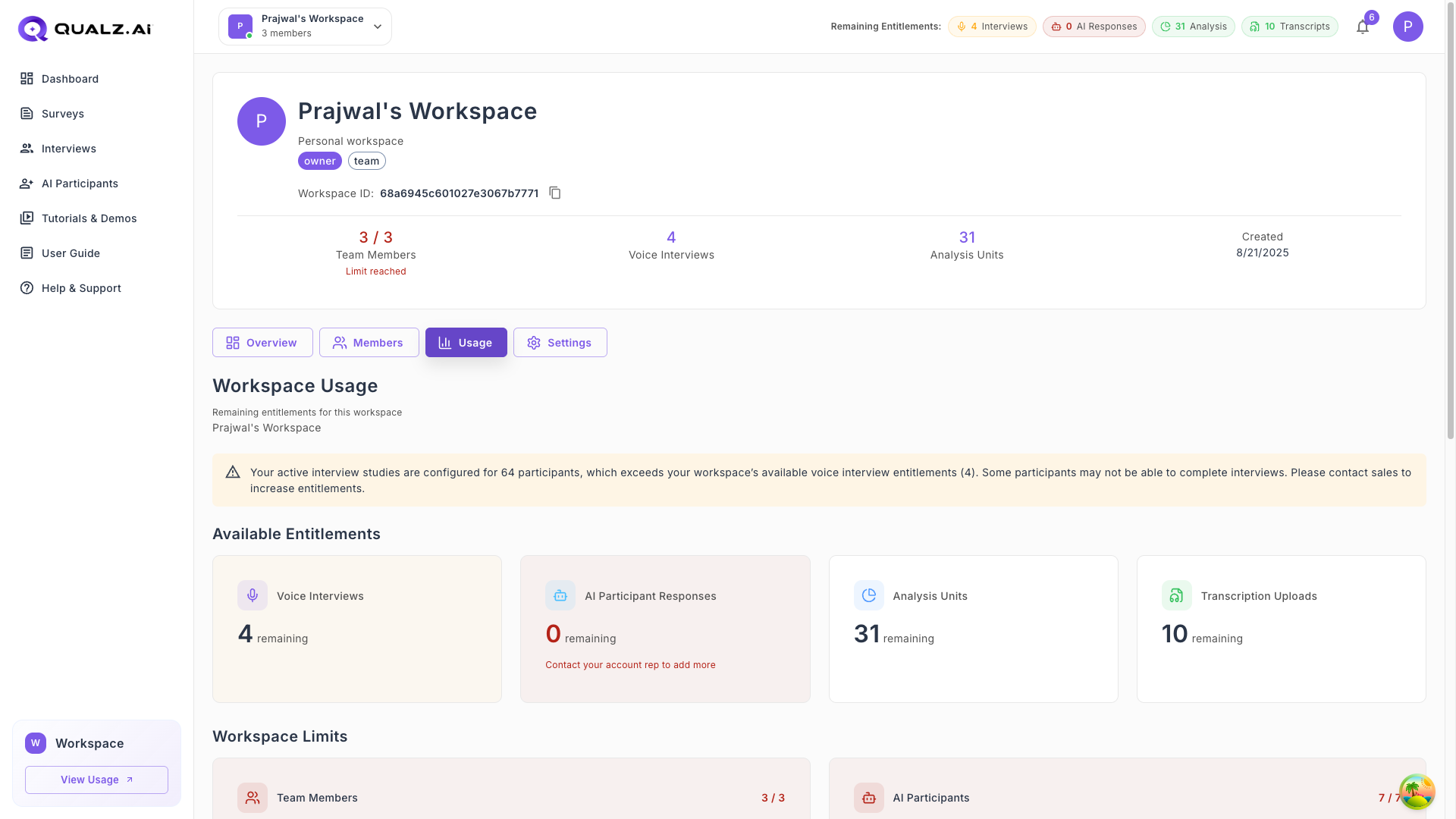
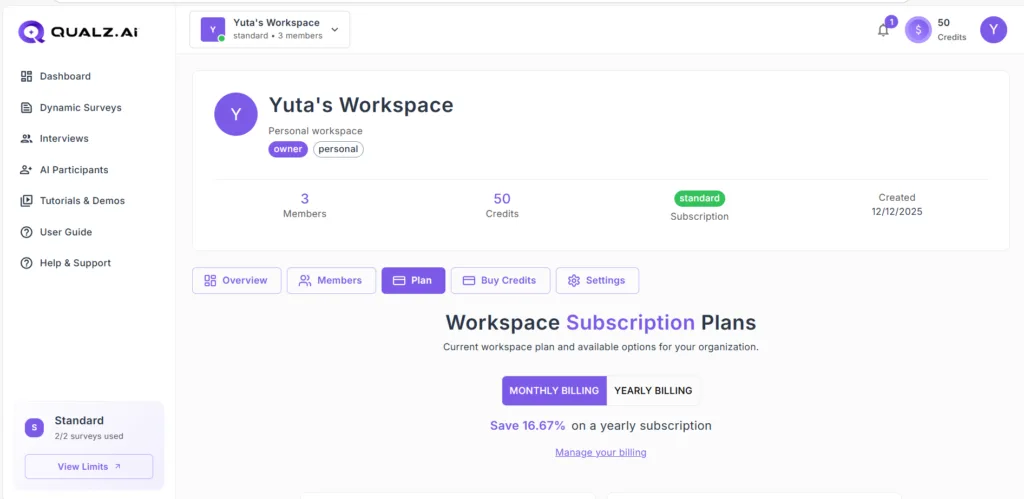
You'll see:
- Current workspace tier (Standard, Professional, Enterprise)
- Member count
- Credit balance
- "Workspace Subscription Plans" heading
Step 2: Choose Billing Frequency
Decide between monthly or yearly billing for Professional tier.
Select Billing Cycle
Monthly Billing Tab:
- $199.99/month
- Billed monthly
- Cancel anytime
- Monthly credit allocation (2,000 credits)
Yearly Billing Tab:
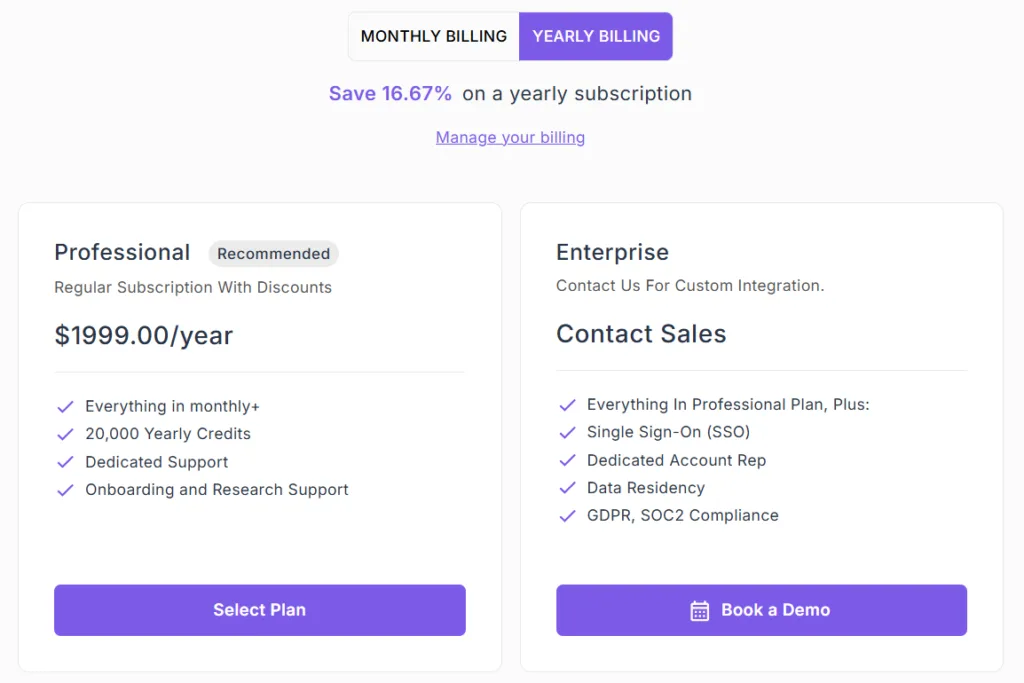
- $1,999.00/year
- Billed annually
- Save 16.67% compared to monthly
- Yearly credit allocation (20,000 credits)
Toggle between tabs:
- Click "MONTHLY BILLING" or "YEARLY BILLING" toggle
- Pricing updates automatically
- Review features for selected billing cycle
Step 3: Click "Select Plan" to Upgrade
Initiate the upgrade process by selecting your desired plan.
Select Professional Plan
- Review Professional plan features (monthly or yearly)
- Click the "Select Plan" button
- A confirmation dialog appears
Step 4: Confirm Plan Change
Review and confirm your upgrade decision.
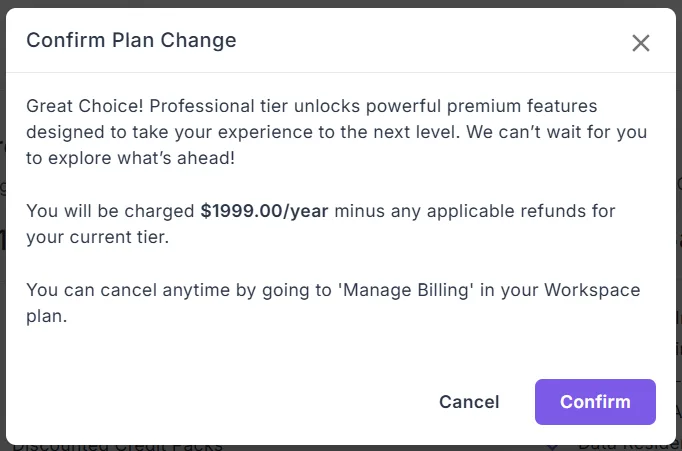
Confirmation Dialog
"Confirm Plan Change" modal displays:
Message: "Great Choice! Professional tier unlocks powerful premium features designed to take your experience to the next level. We can't wait for you to explore what's ahead!"
Pricing information:
- "You will be charged $1999.00/year minus any applicable refunds for your current tier."
- (Amount varies based on monthly vs. yearly selection)
Cancellation policy: "You can cancel anytime by going to 'Manage Billing' in your Workspace plan."
Action buttons:
- "Cancel" – Return without upgrading
- "Confirm" – Proceed to payment
Confirm the Upgrade
- Read the confirmation message carefully
- Note the pricing amount
- Understand cancellation policy
- Click "Confirm" to proceed
Step 5: Complete Payment
Process payment to finalize your workspace upgrade.
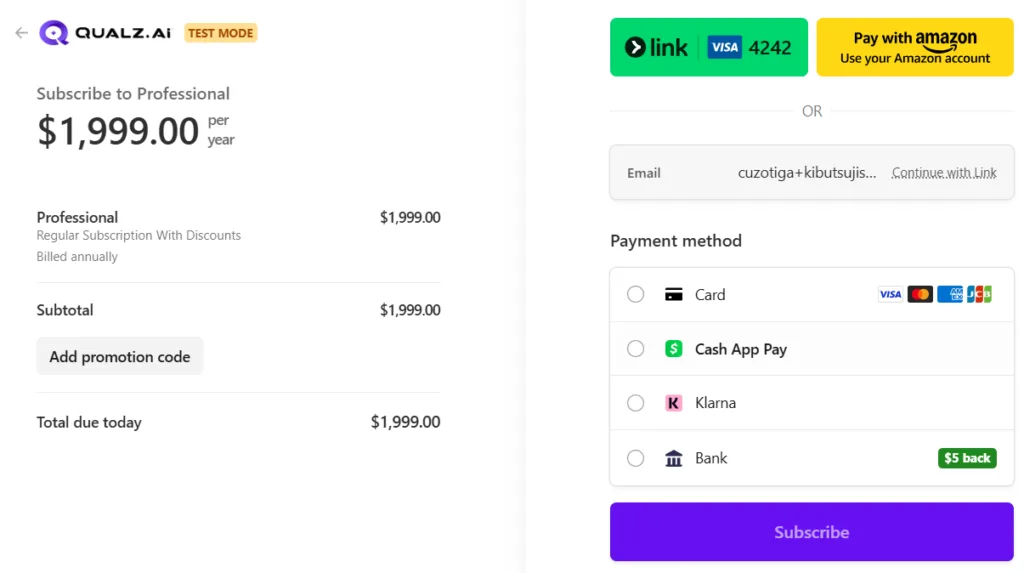
Payment Checkout Page
Subscription Details:
Subscribe to Professional
- Amount: $1,999.00 (yearly) or $199.99 (monthly)
- Plan: Professional - Regular Subscription With Discounts
- Billing: Billed annually or monthly
Pricing Breakdown:
- Subtotal: $1,999.00 (or $199.99)
- Add promotion code (optional)
- Total due today: $1,999.00 (or $199.99)
Payment Methods Available:
- 💳 Card (Visa, Mastercard, Amex, JCB)
- 💵 Cash App Pay
- Klarna (Buy now, pay later)
- 🏦 Bank ($5 back offer)
Quick Payment Options:
- Link (pay with saved card)
- Amazon Pay (use Amazon account)
Complete Payment
- Verify the subscription amount
- Select your preferred payment method
- Enter payment details
- Add promotion code if available
- Click "Subscribe" button
- Payment processes securely
Step 6: Upgrade Confirmation
Receive confirmation that your upgrade was successful.
Success Message
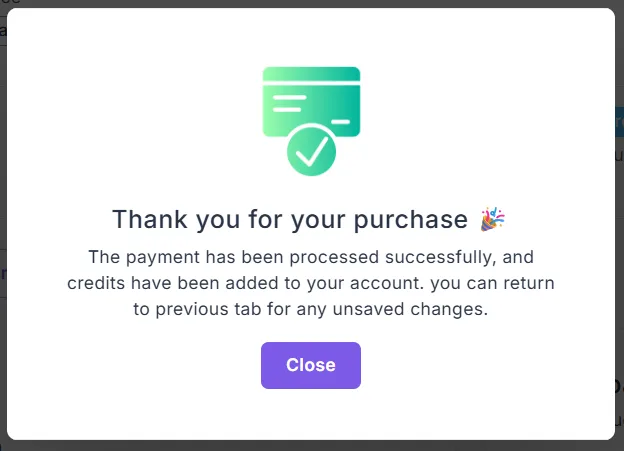
"Thank you for your purchase 🎉"
Confirmation details:
- Green checkmark icon with credit card symbol
- Message: "The payment has been processed successfully, and credits have been added to your account. you can return to previous tab for any unsaved changes."
- "Close" button to return to workspace