How to Create and Switch Workspaces in Qualz.ai: Complete Guide
Master workspace management in Qualz.ai – your comprehensive guide to creating, switching, and managing multiple workspaces for organized research. Learn how to set up workspace environments, manage teams, and seamlessly switch between different research projects.
Prerequisites: Understanding Workspace Limits
Before creating workspaces, understand your tier limits:
- Standard Tier: 1 workspace only (must upgrade to professional to create more)
- Professional Tier: Multiple workspaces allowed
How to Create a New Workspace
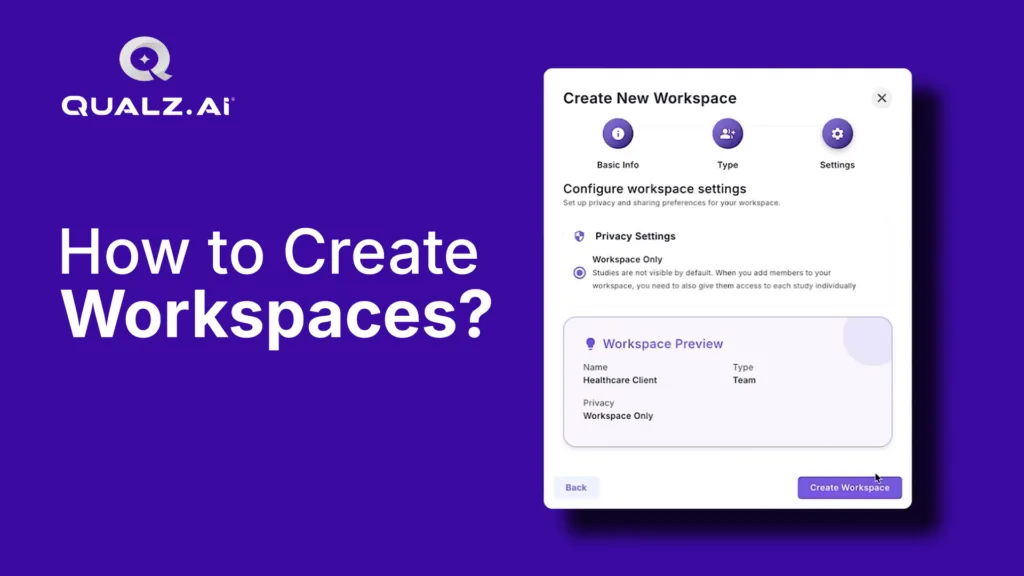
Creating a new workspace takes just 3 simple steps. This is available for Professional and Enterprise tier users.
Step 1: Access Workspace Creation
- Click your workspace name in the top-left corner
- Select "Create New Workspace" from the dropdown
- The Create New Workspace wizard opens
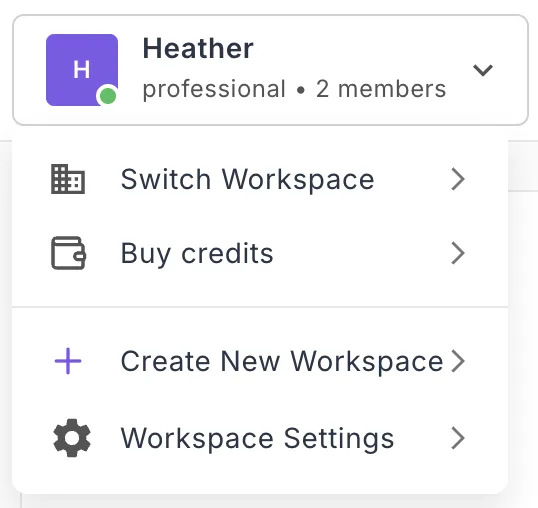
Standard tier users: If you see an upgrade prompt, you'll need to upgrade to Professional first before creating additional workspaces.
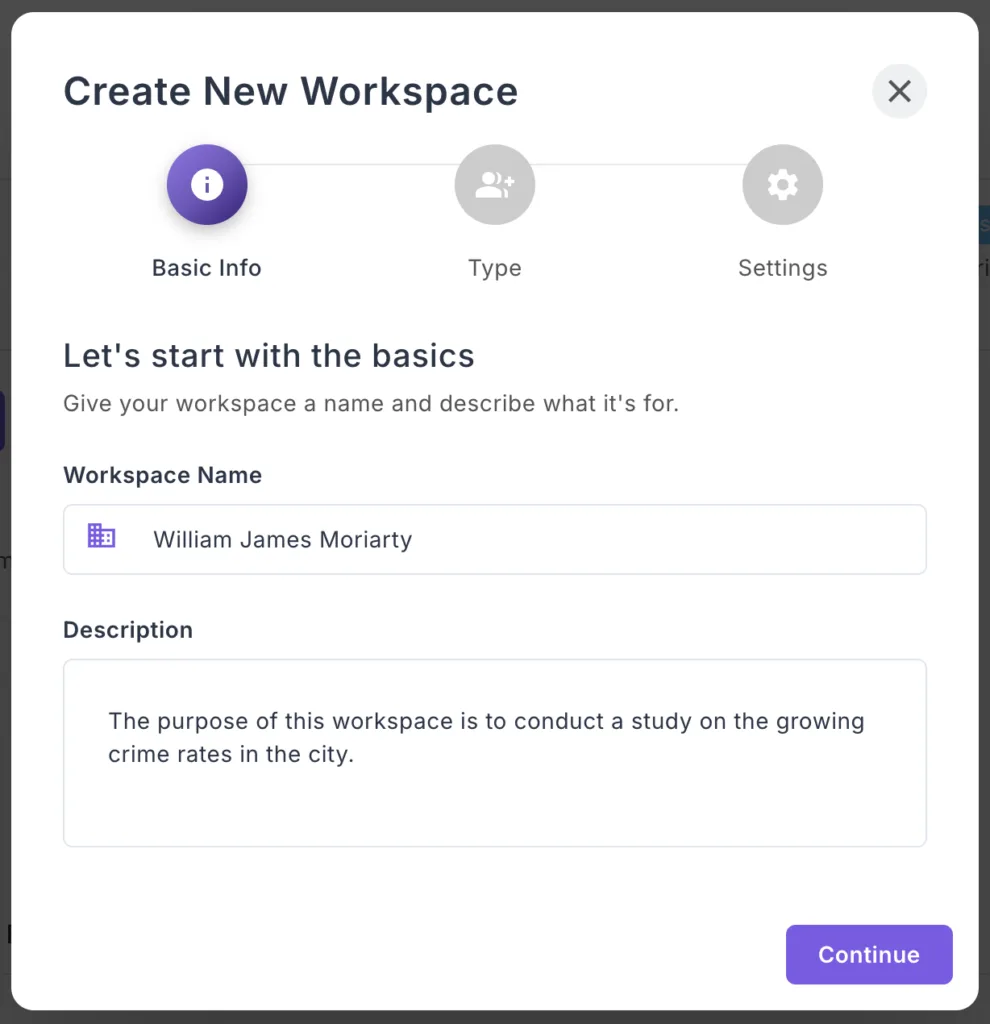
Step 2: Basic Information (3-Step Process)
Name and Description
Workspace Name:
- Enter a clear, descriptive name. Tip: Choose one that you or your team members can easily remember and intuitively recognize.
- Examples: "Client ABC Research" or "Healthcare Q1 2025"
Description:
- Provide a short description of what the workspace will be used for—its specific purpose. You can be as detailed as you like in this description."
- Example: "Customer satisfaction surveys for healthcare clients"
Click "Continue" to proceed.
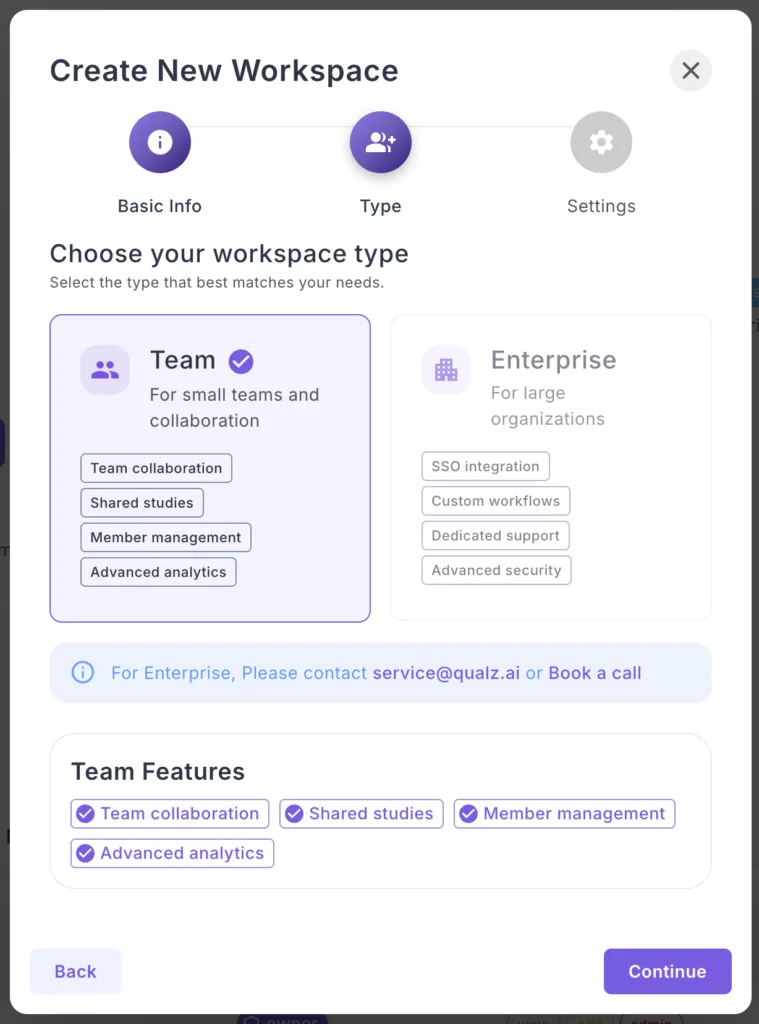
Step 3: Choose Workspace Type
Team Workspace (Recommended):
- For small teams and collaboration
- Features: Team collaboration, shared studies, member management, advanced analytics
- Best for most users
Enterprise Workspace:
- For large organizations
- Features: SSO integration, custom workflows, dedicated support, advanced security
- Contact sales@qualz.ai to discuss Enterprise needs
Select Team and click "Continue".
Step 4: Configure Settings
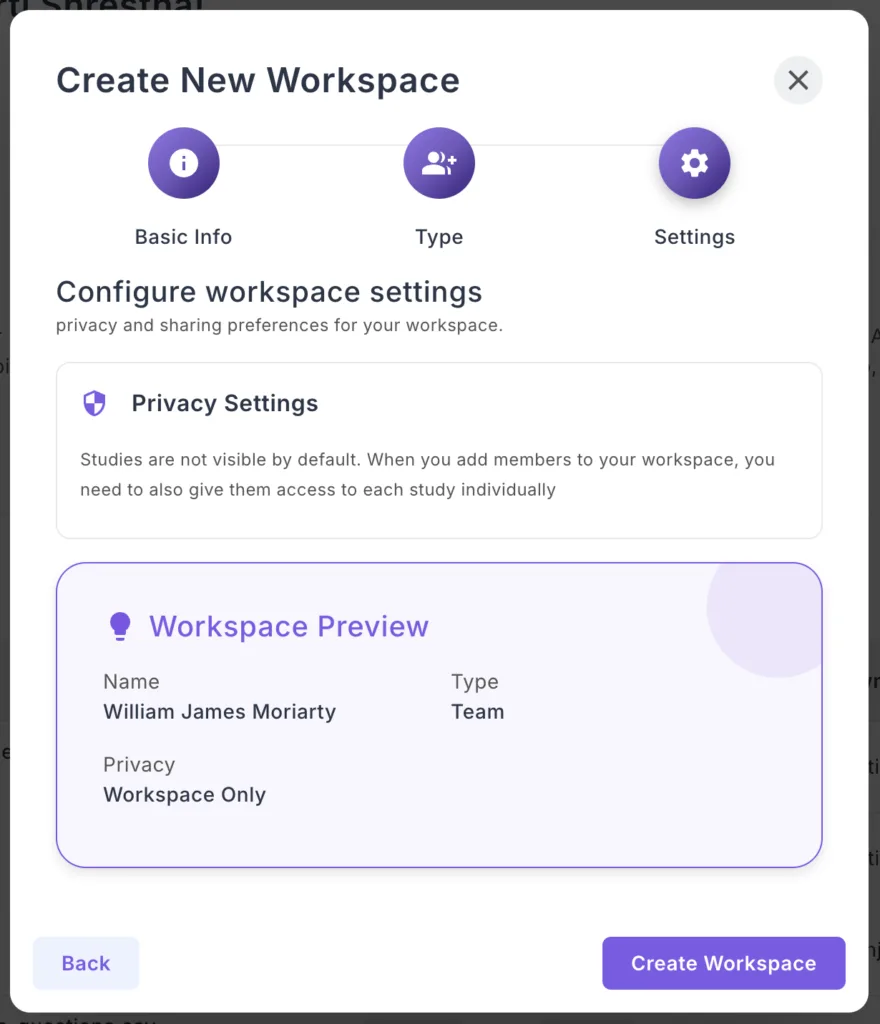
Privacy Settings:
Choose "Workspace Only" (recommended):
- Studies are not visible by default
- Only workspace members can access research data
- Maximum privacy and security
Workspace Preview:
Review your configuration:
- Name – Verify it's correct
- Type – Team or Enterprise
- Privacy – Workspace Only
Step 6: Create Your Workspace
- Review all settings in the preview
- Click "Create Workspace"
- Where the user is directed to the payment wall.
- Where you have to go through the payment process to access your new workspace.
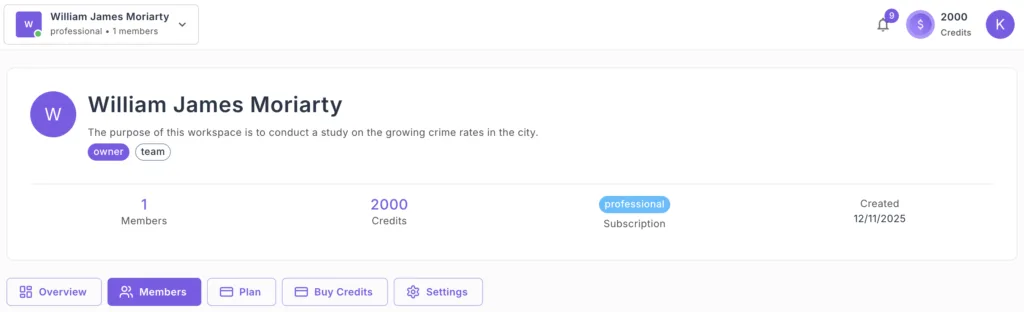
- After your subscribe to the plan your are directed to your new workspace dashboard automatically.
Success! Your new workspace is ready.
How to Switch Between Workspaces
Switching workspaces is quick and simple. Use this when you need to switch from one workspace to another.
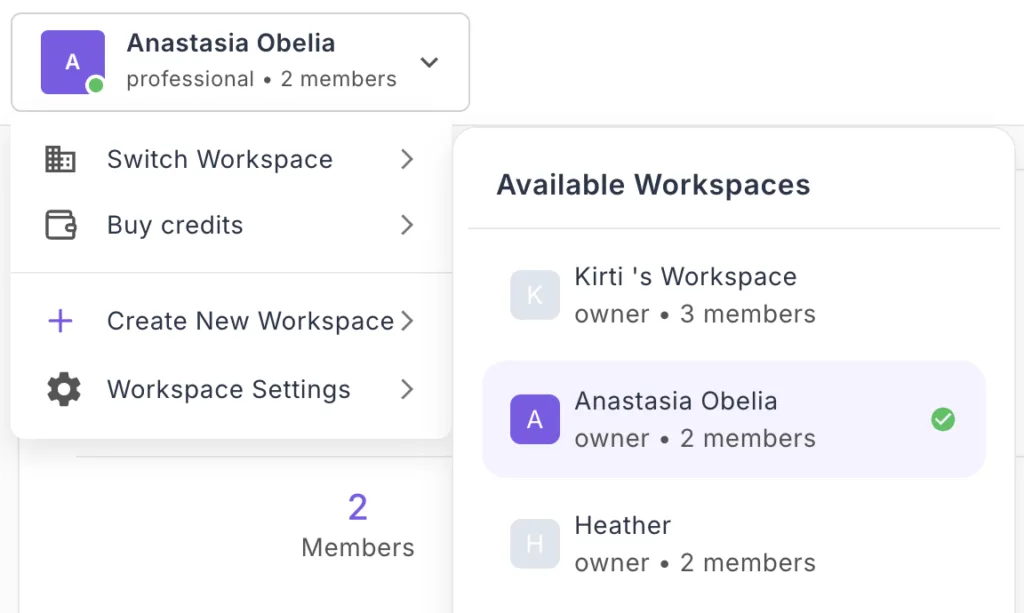
Step 1: Open the Workspace Switcher
- Look at the top-left corner of your dashboard
- Click on your current workspace name
- You'll see your workspace initial, name, tier, and member count
- A dropdown menu appears
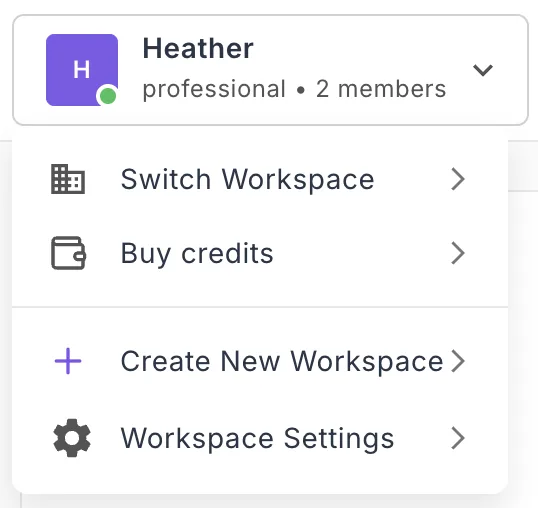
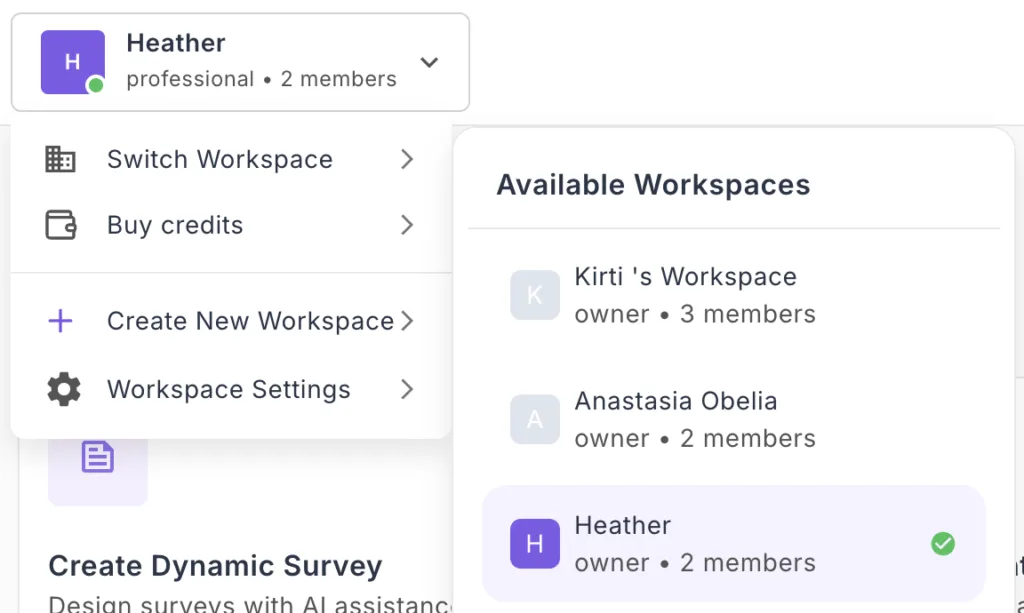
Step 2: Click "Switch Workspace"
- In the dropdown menu, click "Switch Workspace"
- The "Available Workspaces" panel slides in from the right
- All workspaces you have access to are displayed
Step 3: Select Your Target Workspace
In the Available Workspaces panel, you'll see:
- Workspace name and initial
- Your role (Owner, Admin, Member, or Guest)
- Member count (e.g., "2 members")
- Checkmark on your currently active workspace
To switch:
- Click on any workspace you want to switch to.
- The dashboard immediately refreshes
- You're now working in the selected workspace
That's it! All your actions now occur within the new workspace context.