How to Set Up Screener Questions
Screener questions automatically filter participants based on their answers to qualifying or disqualifying questions. If a participant gives a disqualifying answer, they are immediately redirected out of the survey, ensuring you only collect responses from your target audience.
What Are Screener Questions?
Screener questions work as gatekeepers at the beginning of your survey. They evaluate participant responses against criteria you define — if a participant's answer matches a disqualifying value, they are screened out before completing the rest of the survey.
Common Use Cases
- Age verification — Ensure participants meet minimum age requirements
- Target audience filtering — Only survey customers who have used a specific product
- Geographic targeting — Screen for participants in specific regions
- Experience-based screening — Filter for participants with relevant background
- Consent verification — Confirm participants agree to study terms
How Screener Questions Work
Surveys automatically become screener surveys when you configure screener questions — there is no separate mode or toggle at the survey level. The system detects screener configurations and handles the logic automatically.
The Screening Flow
- Participant begins the survey
- Participant reaches a screener question
- Upon clicking Next Section, the system evaluates their answer
- If the answer matches a disqualifying value → the participant is redirected out
- If the answer does not disqualify → the participant continues normally
Setting Up a Screener Question
Step 1: Create a Choice Question
Only Multiple Choice and Multiple Answers question types can be used as screener questions. Create your screening question with clear, unambiguous answer options.
Example: "Are you 18 years or older?" with options "Yes" and "No"
Step 2: Enable the Screener Toggle
Scroll down in the question editor to find the Screener Question toggle. Enable it to reveal the screening configuration.
Step 3: Mark Disqualifying Answers
After enabling the toggle, you will see your answer options listed with Not selected badges. Click the badge next to any answer that should disqualify a participant to mark it as a Disqualifier (shown in red).
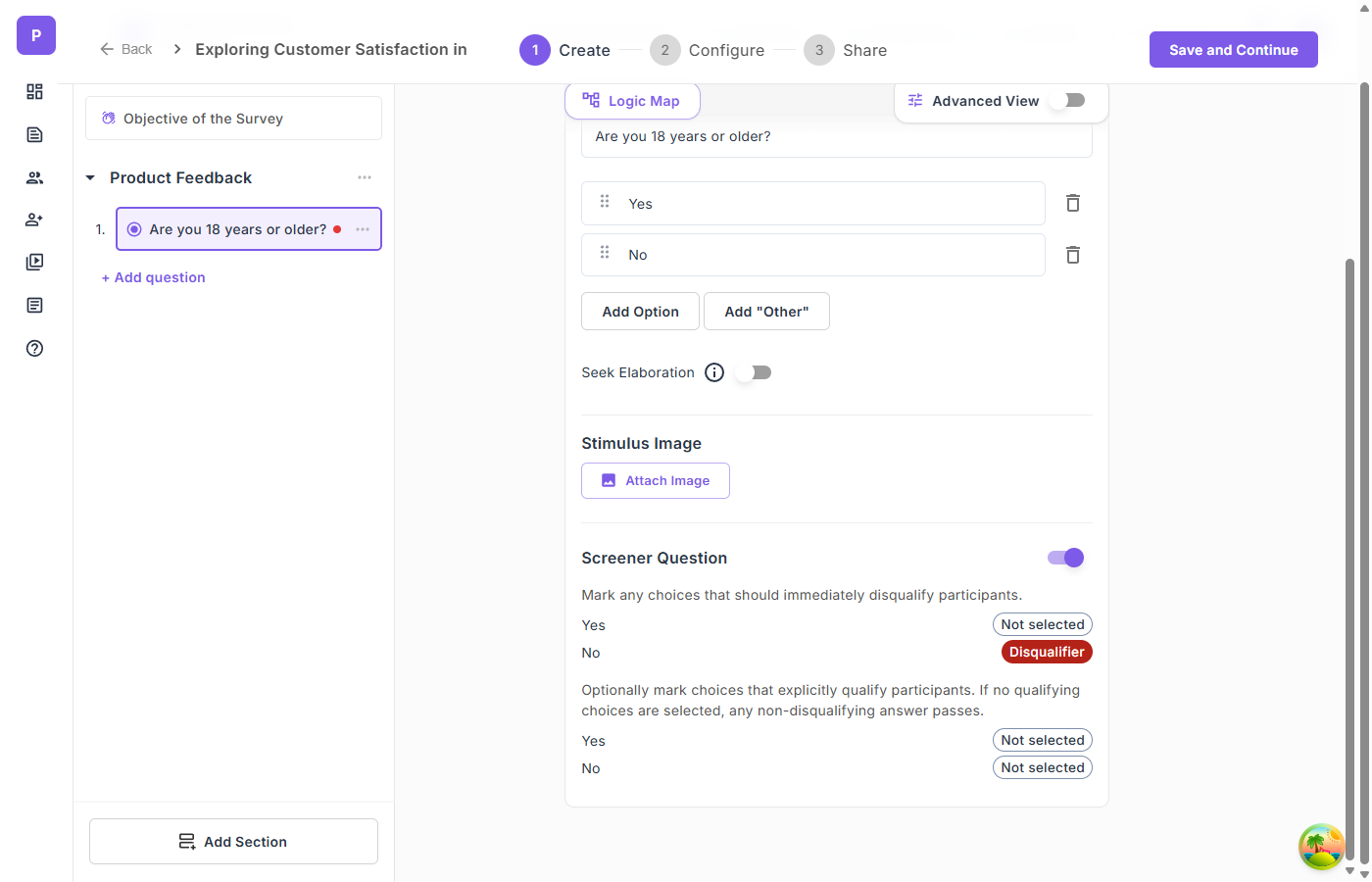
In the example above:
- "Yes" is left as "Not selected" — participants who select this answer continue the survey
- "No" is marked as Disqualifier — participants who select this answer are screened out
Step 4: Optionally Mark Qualifying Answers
Below the disqualifier section, you can optionally mark answers that explicitly qualify participants. If no qualifying choices are set, any non-disqualifying answer passes automatically.
Visual Indicators
When a question is configured as a screener:
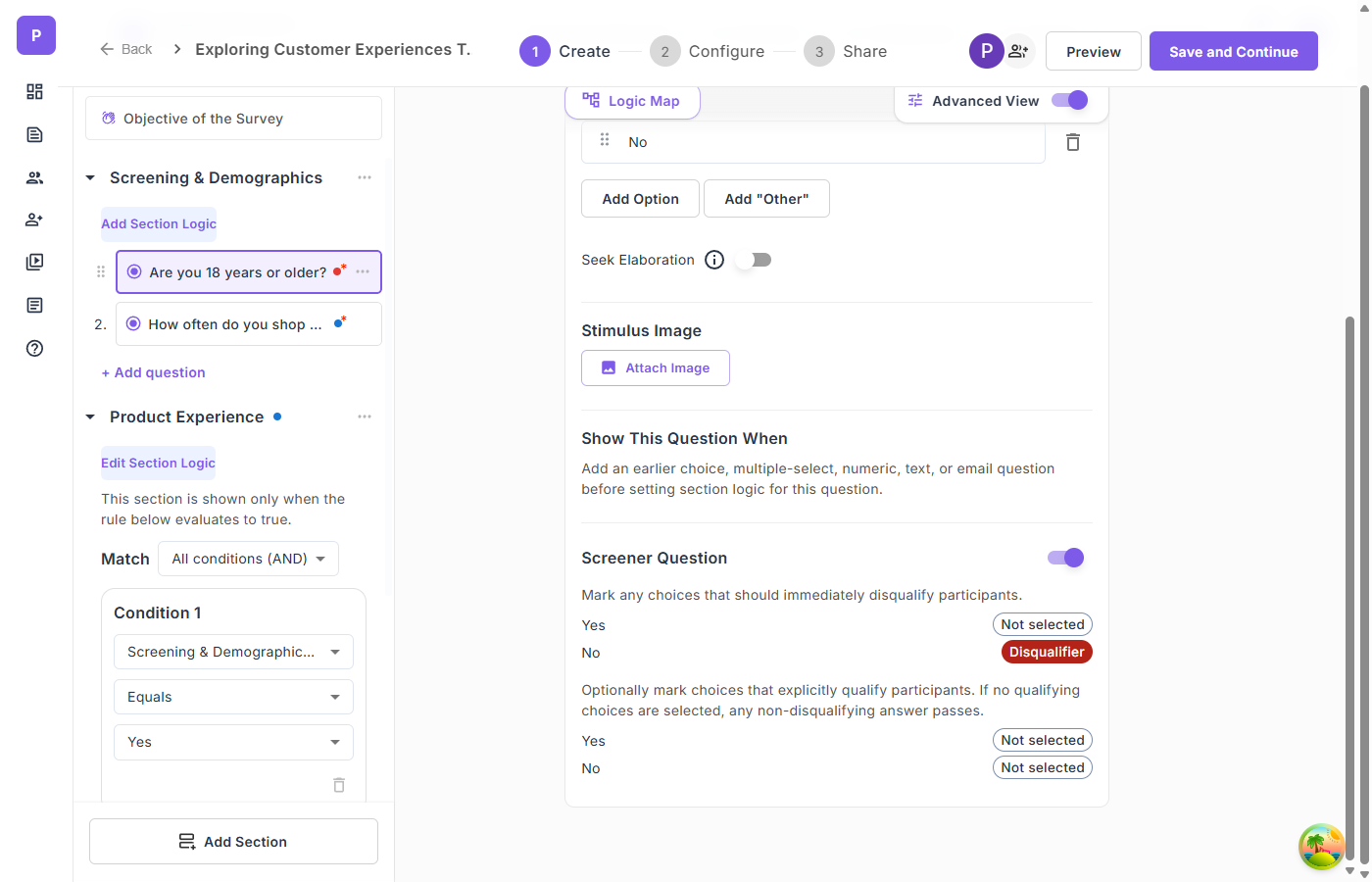
- A red dot appears next to the question in the sidebar, indicating it has screener logic
- The Logic Map shows the question with a red "Screener" badge and displays the screen-out rule
Screener Behavior with Redirects
When configuring your survey in the Configure step, you can set up redirect URLs:
- Redirect URL — Where qualified participants go after completing the survey
- Incomplete Redirect URL — Where screened-out participants are sent
The system automatically appends the participant's interaction ID (iid) to the redirect URL, allowing you to track which participants were screened out in your panel system.
Viewing Screeners in the Logic Map
The Logic Map provides a clear visualization of how screener questions affect the survey flow:
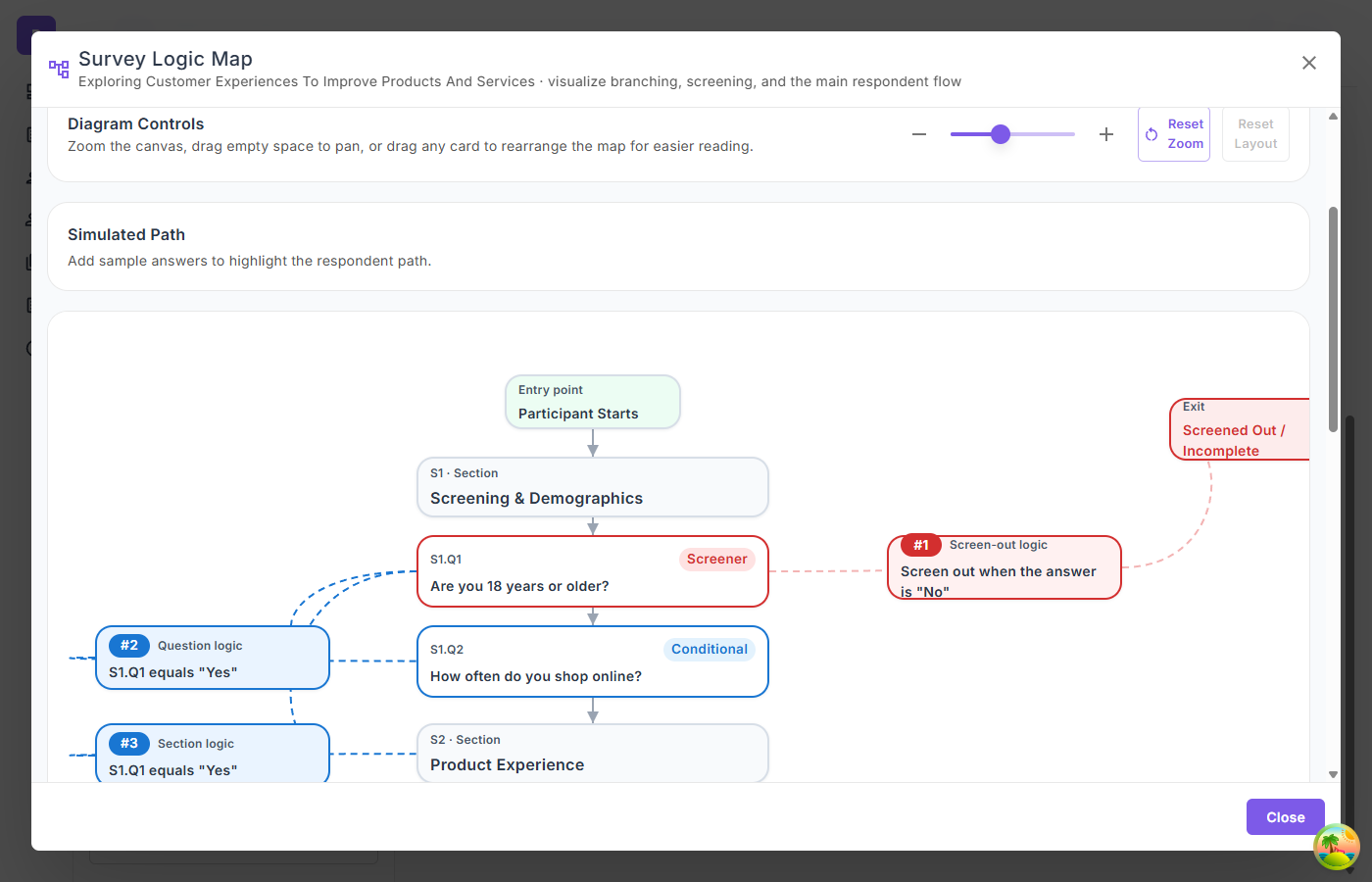
In the Logic Map:
- Screener questions appear as red-bordered nodes with a "Screener" label
- Screen-out logic is displayed as a numbered rule card showing the disqualifying condition
- A "Screened Out / Incomplete" exit node shows where disqualified participants are redirected
- The flow clearly distinguishes between the main participant path and the screen-out path
Combining Screeners with Branching
Screener questions and branching logic are complementary features:
- Screeners control whether a participant stays in or leaves the survey entirely
- Branching controls which questions and sections are visible within the survey
A single question can be both a screener and a source for branching rules. For example, an age verification question might screen out participants under 18 while also controlling which age-specific sections appear for qualified participants.
Tips for Screener Questions
- Place screeners early — Put screening questions in the first section to avoid collecting unnecessary data
- Keep screener sections short — Participants who get screened out should have a quick experience
- Use clear, direct questions — Ambiguous screening criteria lead to unreliable filtering
- Set up redirect URLs — Configure the incomplete redirect URL in the Configure step so screened-out participants have a clean exit
- Review the Logic Map — Use the Logic Map to verify your screening flow before sharing the survey
- Test your screeners — Preview the survey and verify that disqualifying answers trigger the expected behavior