Upload Your Data: Analyze Existing Survey Responses
Got survey data? Skip all the tedious setup! Just drag and drop your data into Qualz.ai, and we’ll do the heavy lifting. Sit back, and let us turn your data into actionable insights in no time.
Here's how to make it happen:
Dynamic Survey Dashboard
You'll see a side navigation menu on the left-hand side of your dashboard.
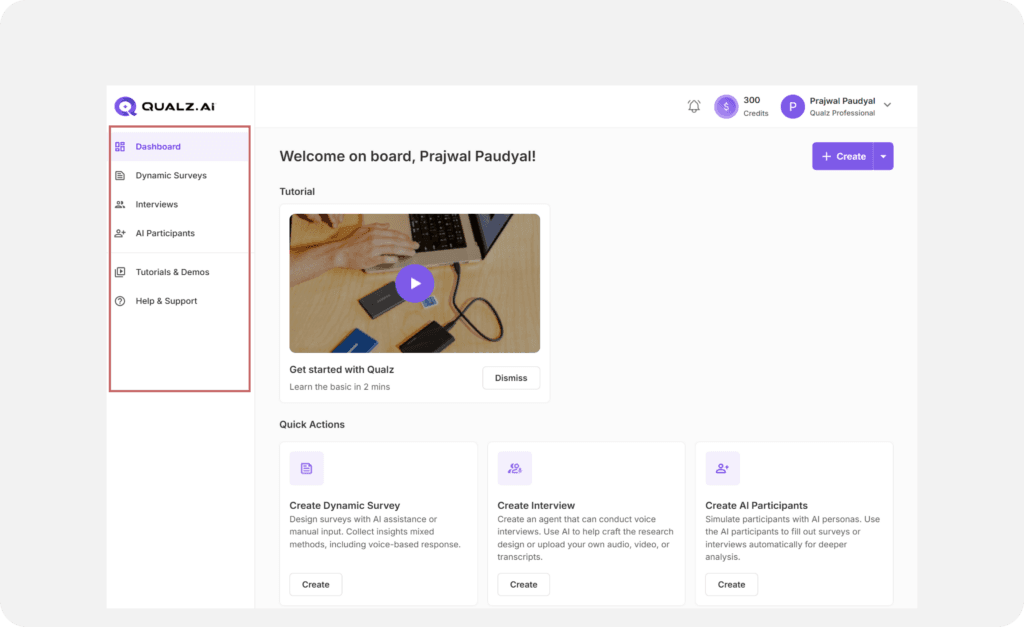
Find “Dynamic Surveys”
Click on Dynamic Surveys in the menu.
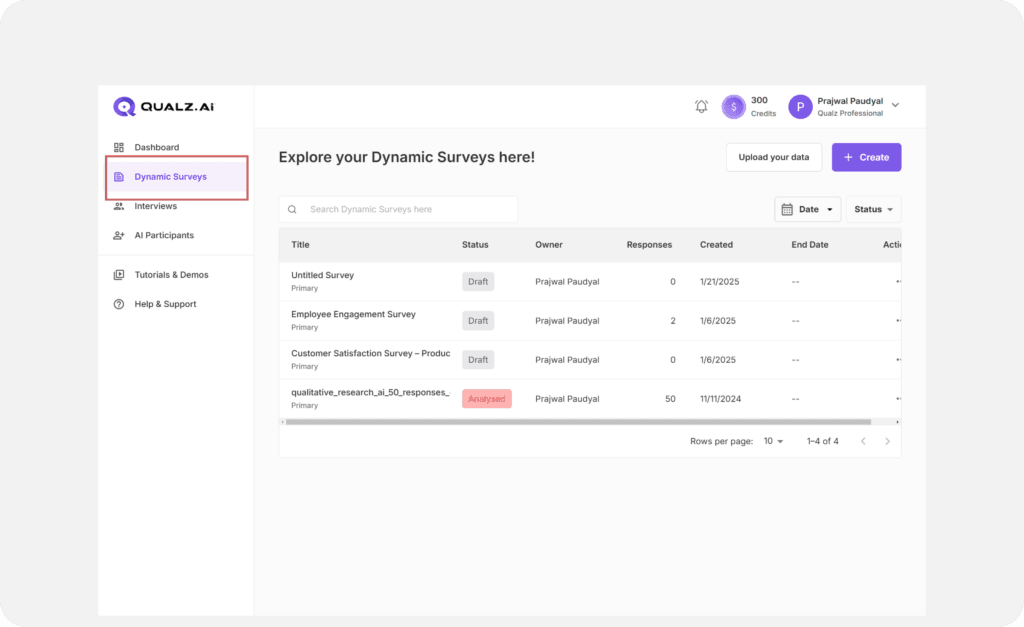
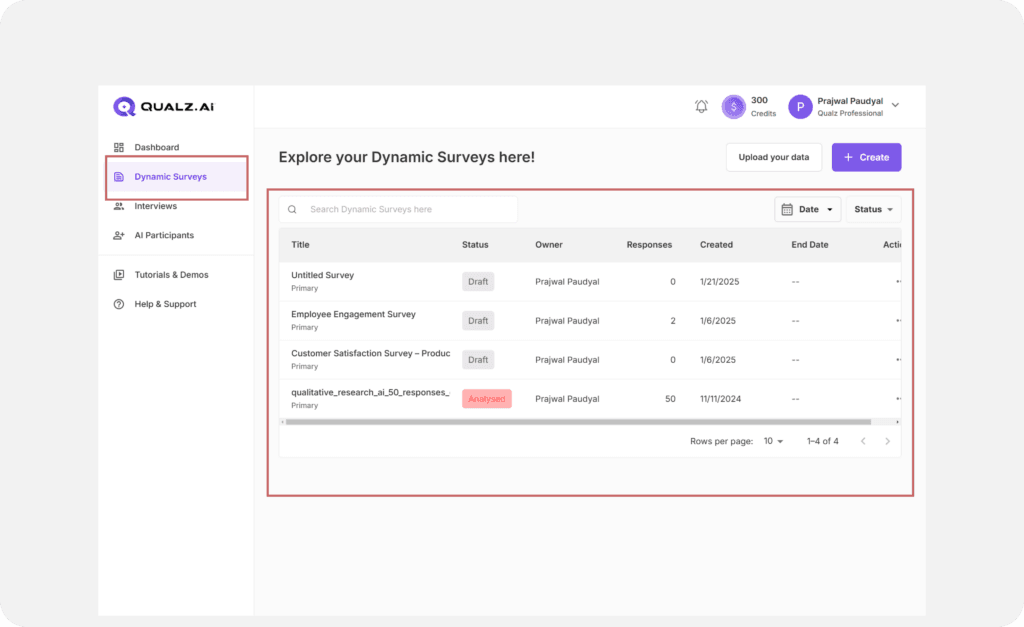
View Existing Surveys
You’ll be taken to a page showing all your previously created surveys (if any).
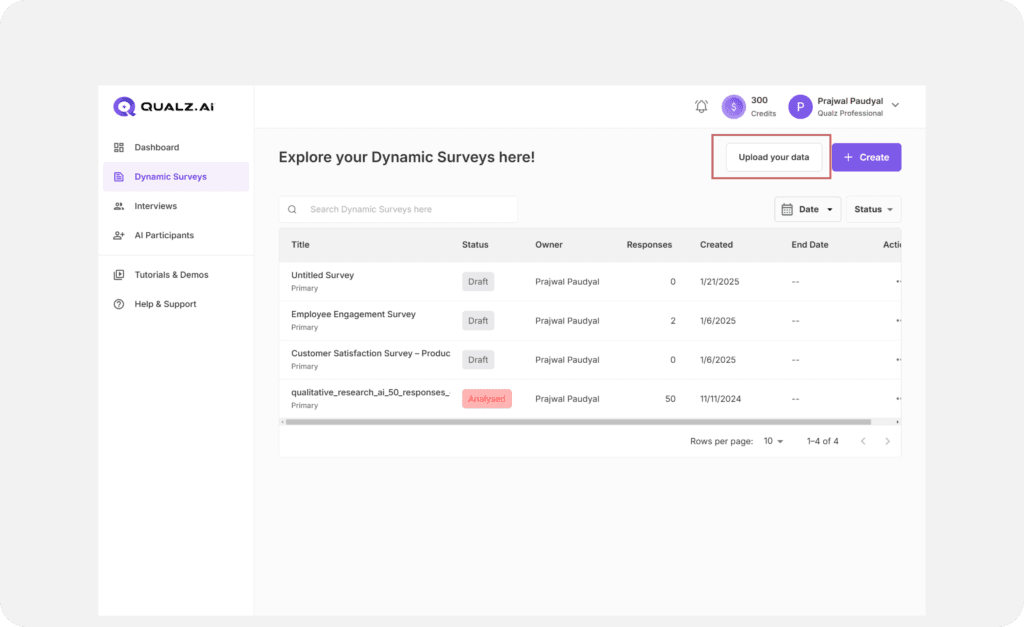
Locate “Upload Your Data”
Check out the top header—you’ll see an option that says Upload Your Data. Click it.
Drag & Drop Your File
A box will appear to drop your file. Drag and drop your file here, or click to browse and upload. We accept .xls, .xlsx, and .csv formats.
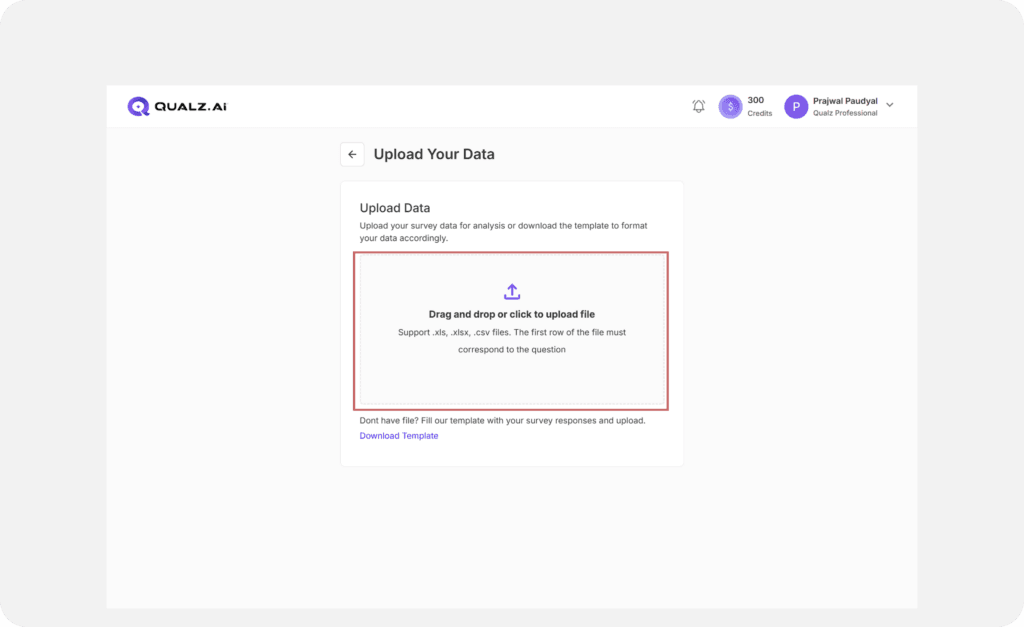
Preview Your File
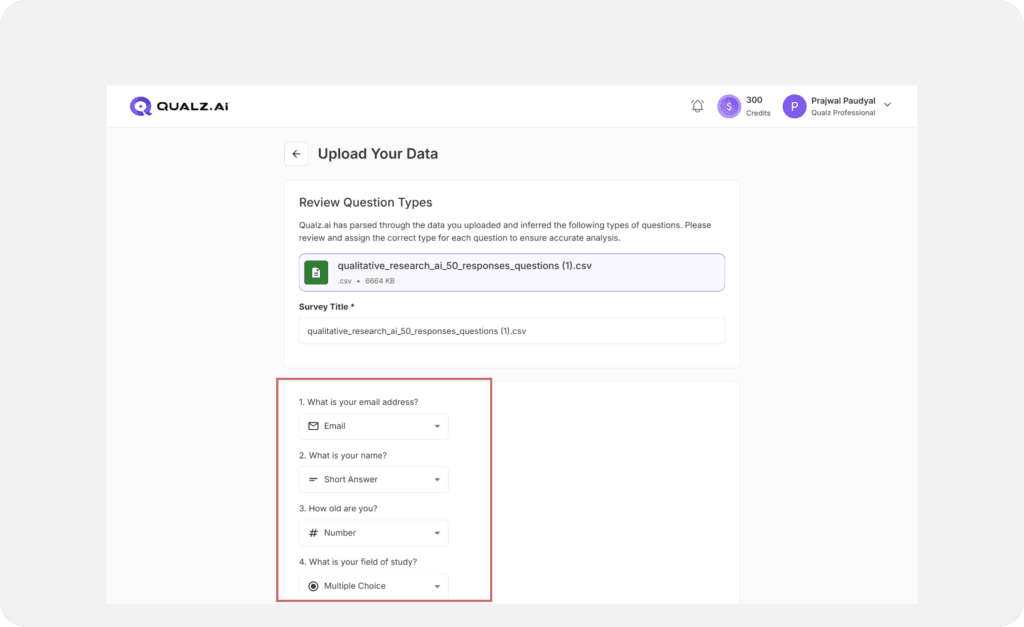
After uploading, preview your file and double-check it looks good.
Preview Questions & Types
Review the questions and their types to ensure they’re spot on.
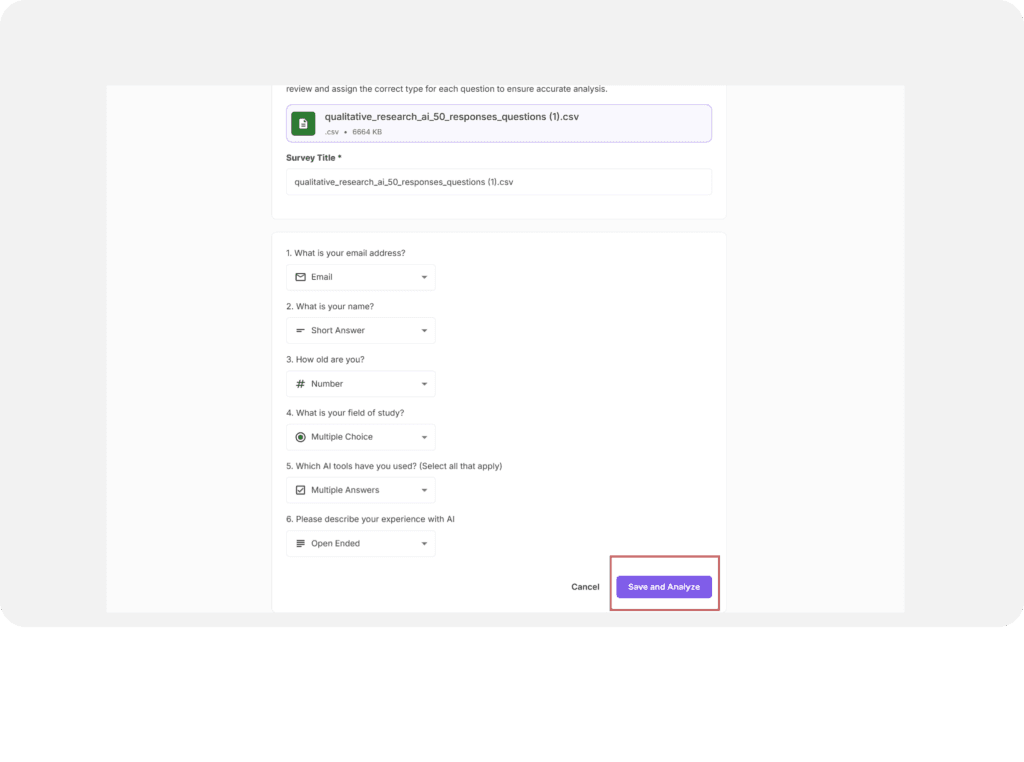
Save & Analyze or Cancel
- Click Save and Analyze to begin analyzing your data.
- Changed your mind? Hit Cancel instead.
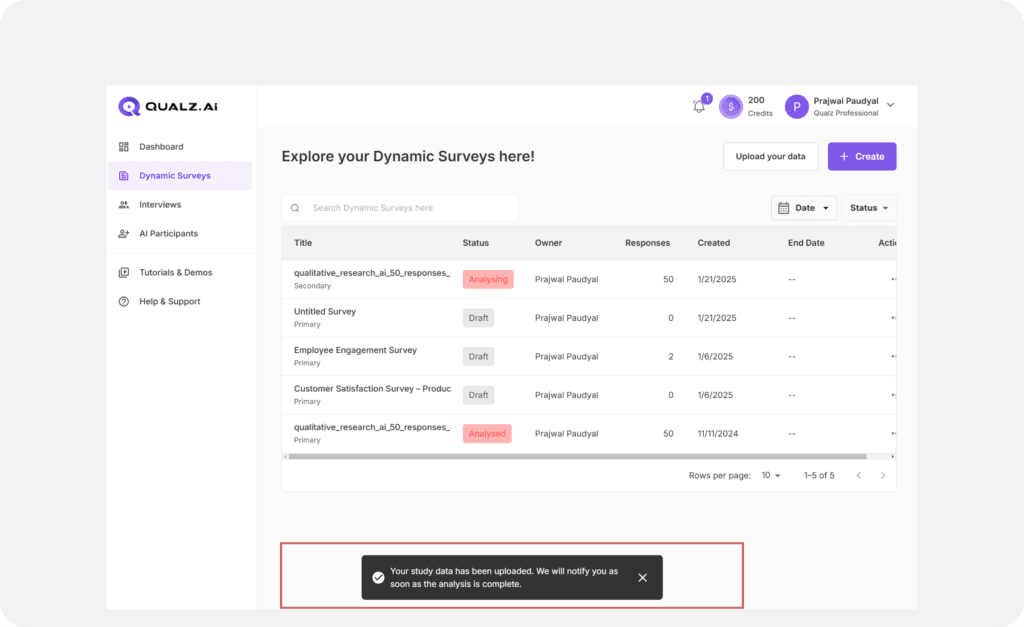
Check Survey Status Once saved, your uploaded survey will appear in a table with its status, initially showing "Analyzing."
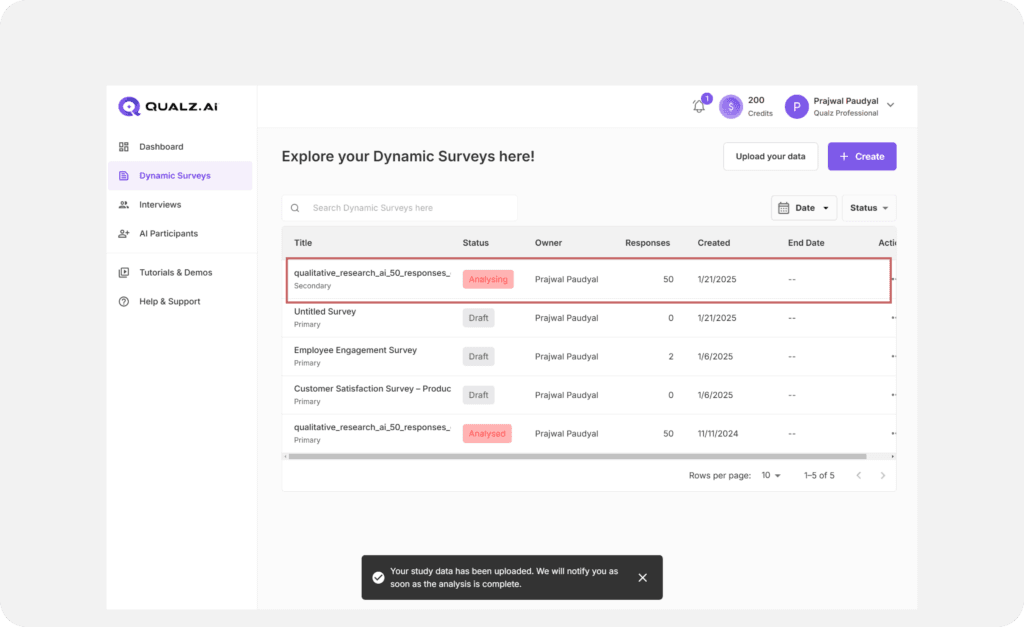
Get Notified
Once the analysis is complete, you’ll receive a notification on the platform and an email in your registered inbox.
Why You’ll Love This Feature
Uploading your data is quick, simple, and—dare we say—fun! No need to reinvent the wheel. Your survey journey starts here, and with Qualz.ai’s analysis magic, you’re set to uncover actionable insights in no time.
Make sure you have entitlements
This action consumes Analysis Units from your workspace's entitlements. The dashboard shows how many units are required before the analysis starts and lets you know if your workspace is short.
By following these steps with the Analyze Existing Data feature, you can turn your existing survey data into actionable insights.
See how to add more entitlements →
Looking for interview uploads instead?
If you want to upload existing interview recordings, videos, or transcripts, use the Upload Your Data flow under Interviews. See Upload Your Data: Existing Interviews, Audio, Video, and Transcripts.