How to Use Branching and Conditional Logic
Branching and conditional logic allow you to create dynamic survey paths that adapt based on participant answers. Instead of showing every question to every participant, you can show or hide specific questions and entire sections depending on how someone responds to earlier questions.
Why Use Branching Logic?
- Personalized experience — Participants only see questions relevant to them, reducing survey fatigue
- Cleaner data — Avoid collecting irrelevant responses from participants who shouldn't answer certain questions
- Shorter completion times — Skipping irrelevant sections leads to higher completion rates
- Complex research designs — Support sophisticated survey flows like follow-up questions based on specific answers
Enabling Advanced View
Branching controls are part of the Advanced View in the survey builder. To access them:
- Open your survey in the builder
- Find the Advanced View toggle in the top-right area of the builder
- Click the toggle to enable it
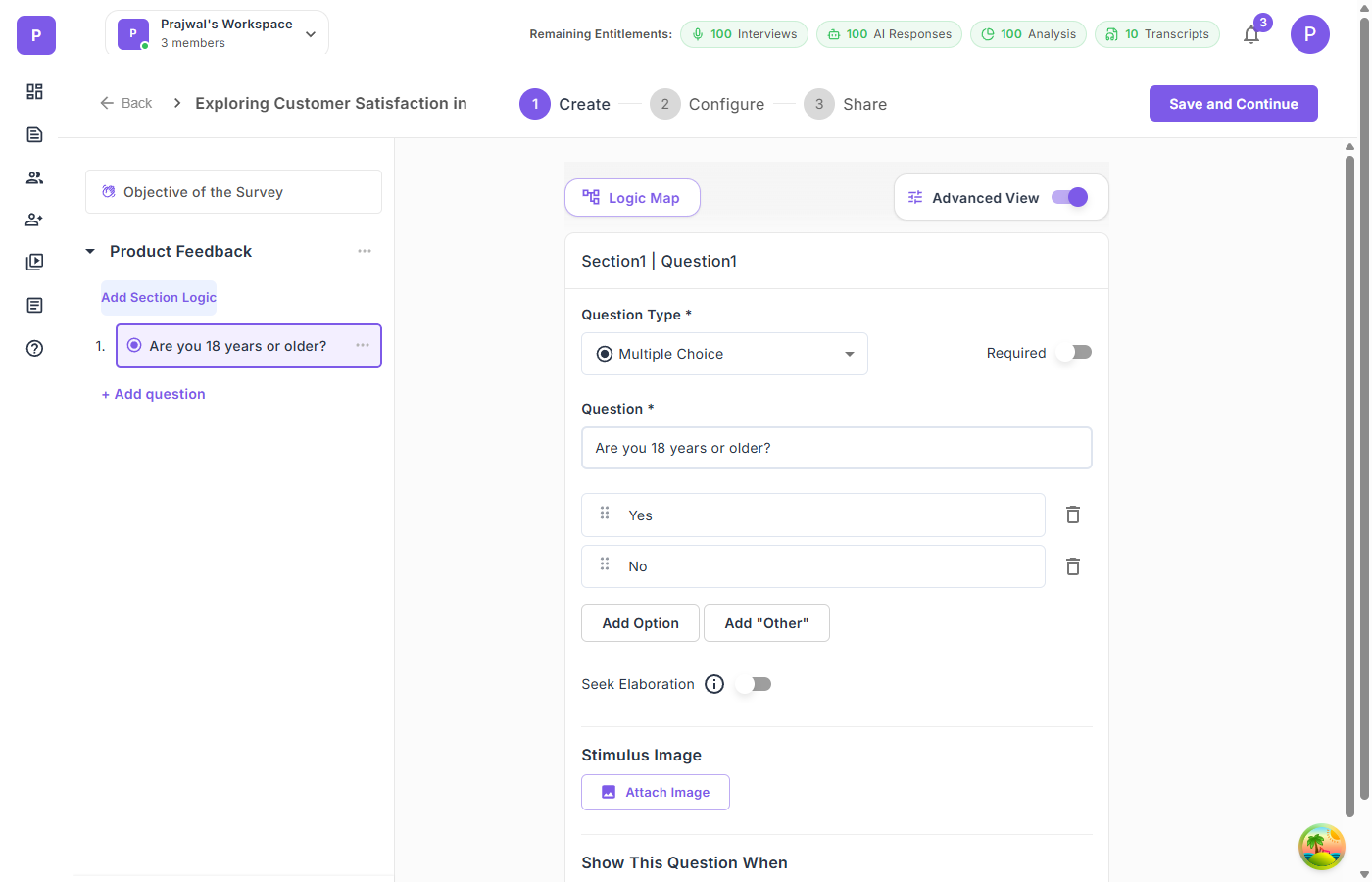
When Advanced View is enabled, you will see:
- Add Section Logic links under each section in the sidebar
- Show This Question When sections on each question editor
- Visual indicators (colored dots) on questions and sections that have logic rules applied
Question-Level Branching
Question-level branching controls whether an individual question is visible based on answers to earlier questions.
How to Add a Question Condition
- Enable Advanced View in the survey builder
- Click on the question you want to make conditional
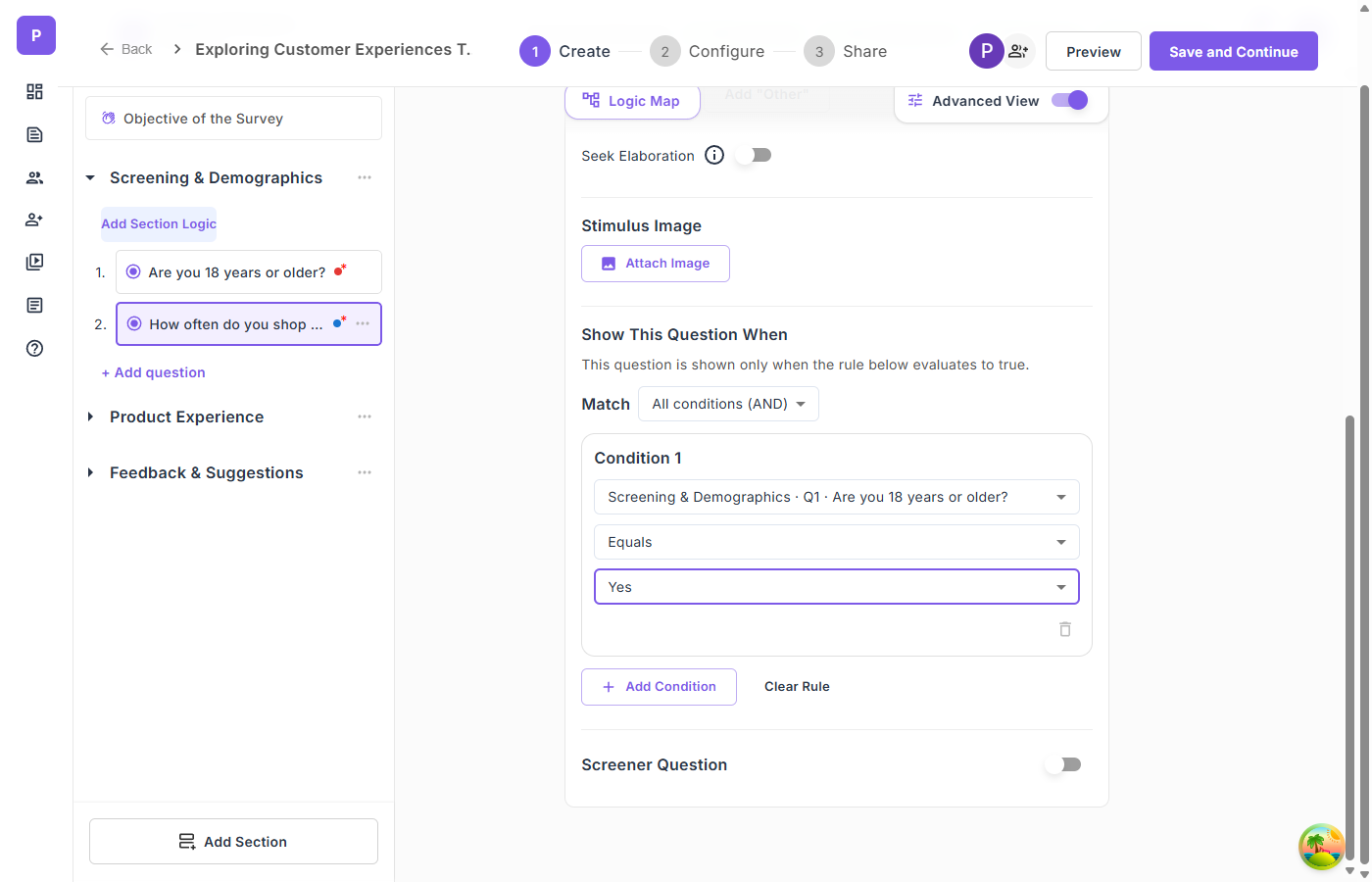
- Scroll down to the Show This Question When section
- Click + Add Condition (or the condition area if no condition exists yet)
- Configure the condition:
- Source Question — Select the earlier question that drives this condition
- Operator — Choose the comparison (Equals, Not Equals, Contains, etc.)
- Value — Select or enter the answer value that triggers visibility
Available Operators
| Operator | Description | Best For |
|---|---|---|
| Equals | Exact match | Choice questions |
| Not Equals | Does not match | Excluding a specific answer |
| Contains | Text includes value | Text-based questions |
| Not Contains | Text does not include value | Text filtering |
| Greater Than | Numeric comparison | Number questions |
| Less Than | Numeric comparison | Number questions |
| Is Empty | No answer provided | Optional questions |
| Is Not Empty | Any answer provided | Checking participation |
Combining Multiple Conditions
You can add multiple conditions using the Match dropdown:
- All conditions (AND) — All conditions must be true for the question to appear
- Any condition (OR) — At least one condition must be true
Click + Add Condition to add additional rules. Use Clear Rule to remove all conditions.
Section-Level Branching
Section-level branching shows or hides an entire section (and all its questions) based on answers from earlier sections. This is useful for directing participants to entirely different survey paths.
How to Add Section Logic
- Enable Advanced View in the survey builder
- Click Add Section Logic under the section you want to make conditional
- Configure the condition using the same source question, operator, and value pattern
- The section will display a blue dot indicator and show the logic summary in the sidebar
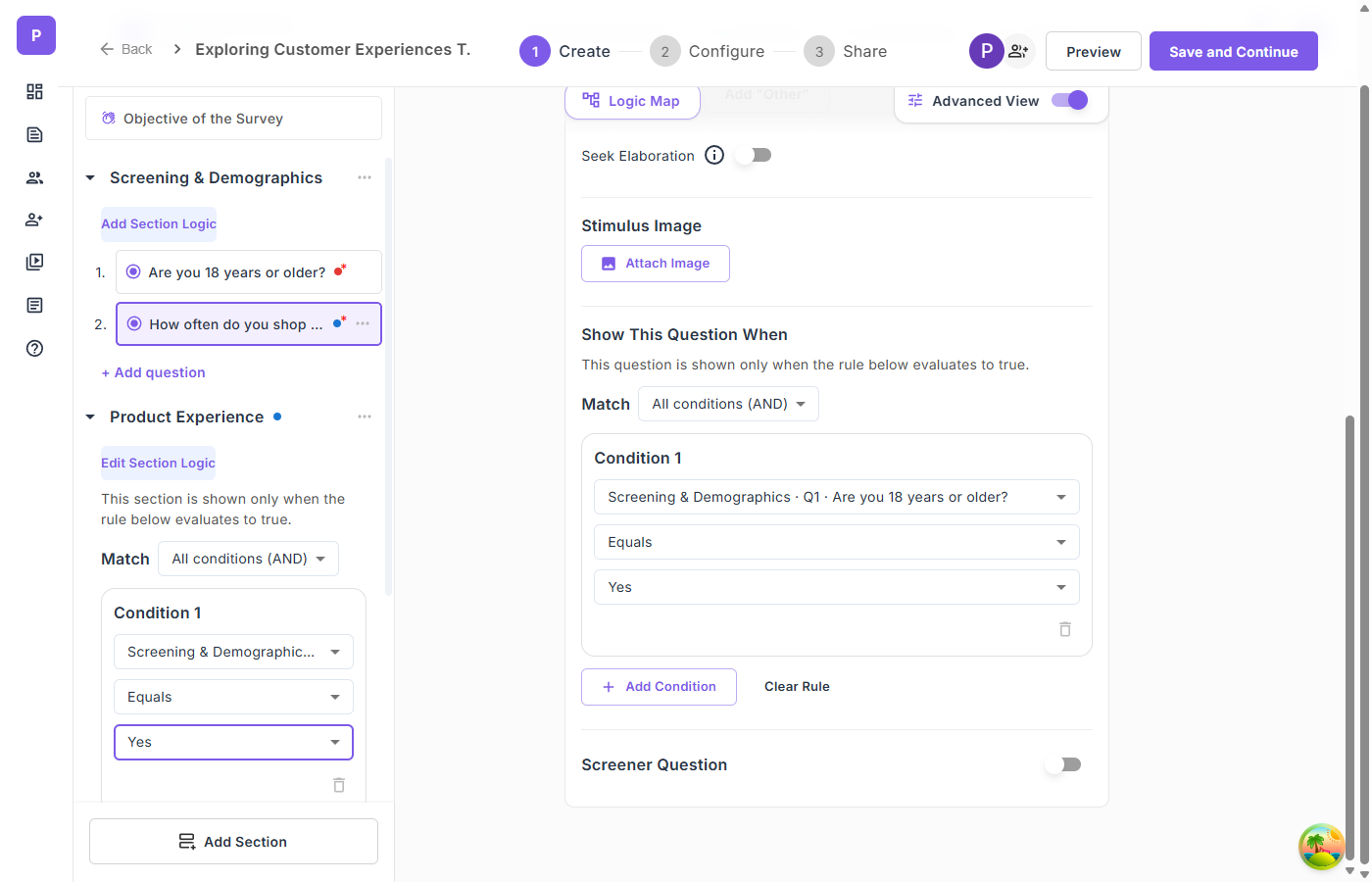
When a section's condition evaluates to false, the entire section and all its questions are skipped. The section counter updates dynamically — if a 5-section survey skips 2 sections, participants see "Section 1 of 3" instead of "Section 1 of 5".
Visualizing Logic with the Logic Map
The Logic Map provides a visual flowchart of your entire survey's logic structure, including branching rules, screener exits, and the main respondent flow.
How to Open the Logic Map
Click the Logic Map button in the top-left area of the survey builder or on the survey detail page.
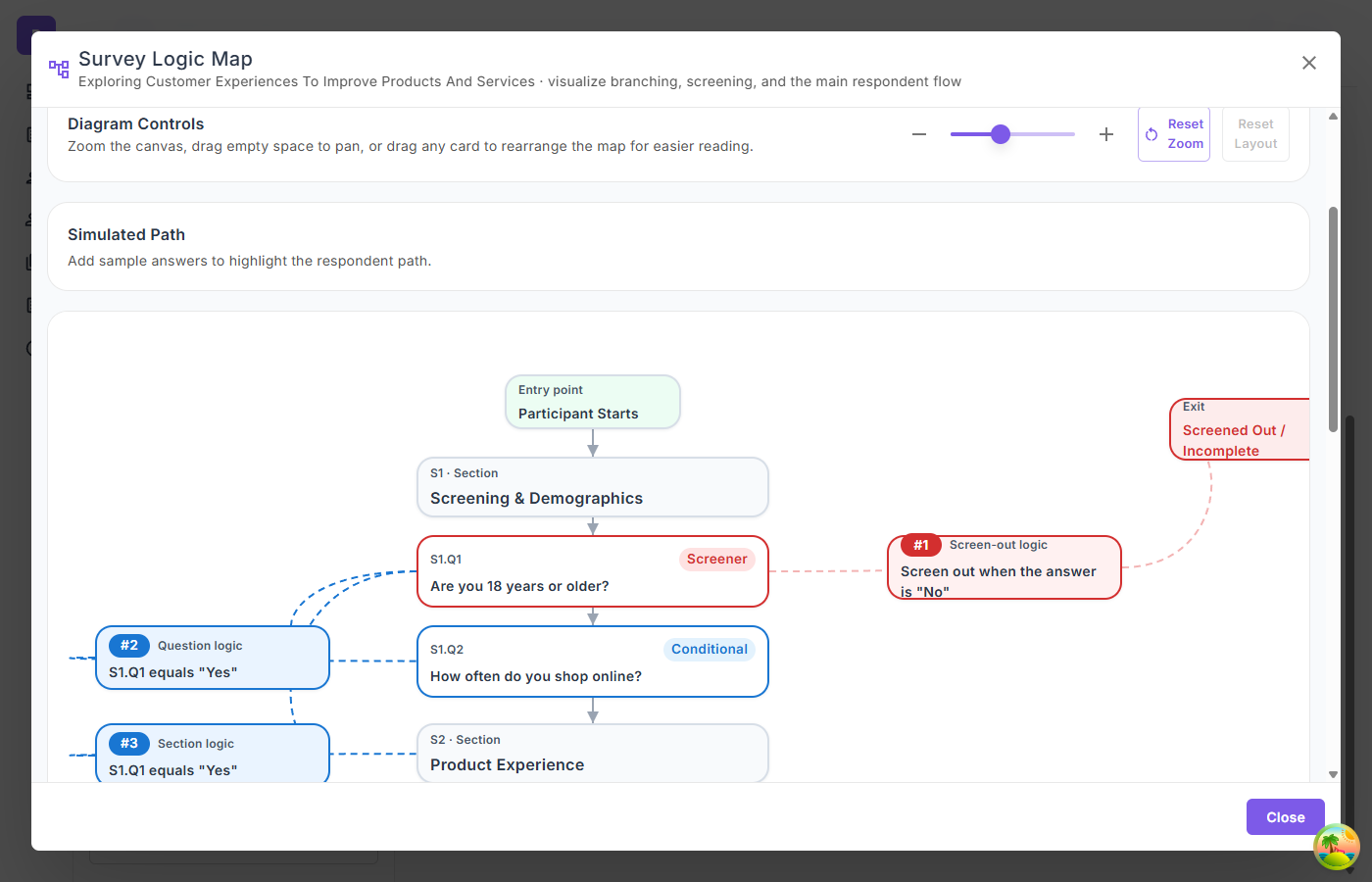
What the Logic Map Shows
- Entry Point — Where participants start the survey
- Section nodes — Each section in the survey flow
- Question nodes — Individual questions with their type indicators
- Screener nodes (red) — Questions that can screen out participants, with screen-out logic displayed
- Conditional badges — Questions and sections with branching rules show "Conditional" labels
- Logic rule cards (blue, numbered) — Detailed branching and section logic conditions
- Exit nodes — Where participants complete the survey or get screened out
Logic Map Controls
- Zoom — Use the slider or +/- buttons to zoom in and out
- Pan — Drag empty space to move around the diagram
- Drag cards — Temporarily reposition cards for easier reading
- Reset Zoom — Return to default zoom level
- Reset Layout — Restore the original card positions
- Simulated Path — Add sample answers to see which path a participant would take
Tips for Using Branching Logic
- Plan your logic before building — Sketch the survey flow on paper first to avoid circular or conflicting rules
- Only earlier questions can be sources — You cannot reference a question that appears later in the survey
- Test with Preview — Always preview your survey to verify that branching works as expected
- Use the Logic Map to get an overview of complex survey flows and ensure nothing is missing
- Validation respects visibility — Required questions that are hidden by branching rules will not block submission
- Combine with Screener Questions for powerful participant filtering workflows