Grid and Ranking Question Types
Qualz.ai supports two advanced question types designed for structured quantitative feedback: Grid / Matrix questions and Ranking questions. These question types help you gather multi-dimensional ratings and understand participant priorities in a clear, organized format.
Grid / Matrix Questions
Grid questions present a table where rows represent items or statements and columns represent a rating scale or set of options. Participants evaluate each item against the same set of choices, making it easy to compare responses across multiple dimensions.
When to Use Grid Questions
- Product or service evaluations — Rate multiple attributes (quality, speed, price) on the same scale
- Likert scale surveys — Measure agreement or satisfaction across several statements
- Comparative assessments — Evaluate multiple items using consistent criteria
How to Create a Grid Question
Step 1: Select Grid / Matrix Question Type
In the survey builder, click the Question Type dropdown and select Grid / Matrix.
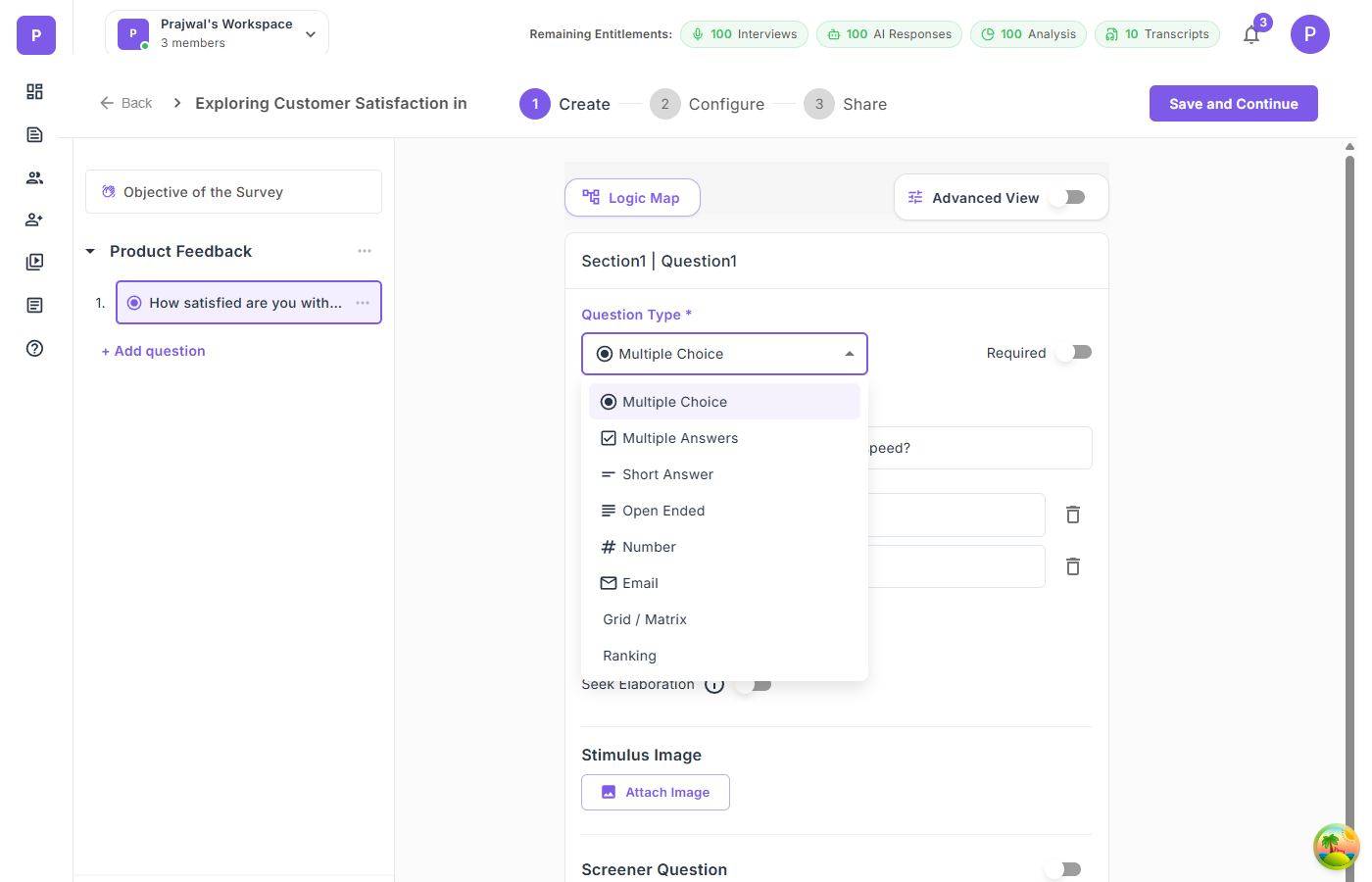
Step 2: Choose the Grid Type
Select how participants interact with the grid:
- Single Select per Row — Participants choose exactly one option per row (radio buttons). Best for rating scales where items are mutually exclusive.
- Multi Select per Row — Participants can choose multiple options per row (checkboxes). Use when multiple attributes might apply to each item.
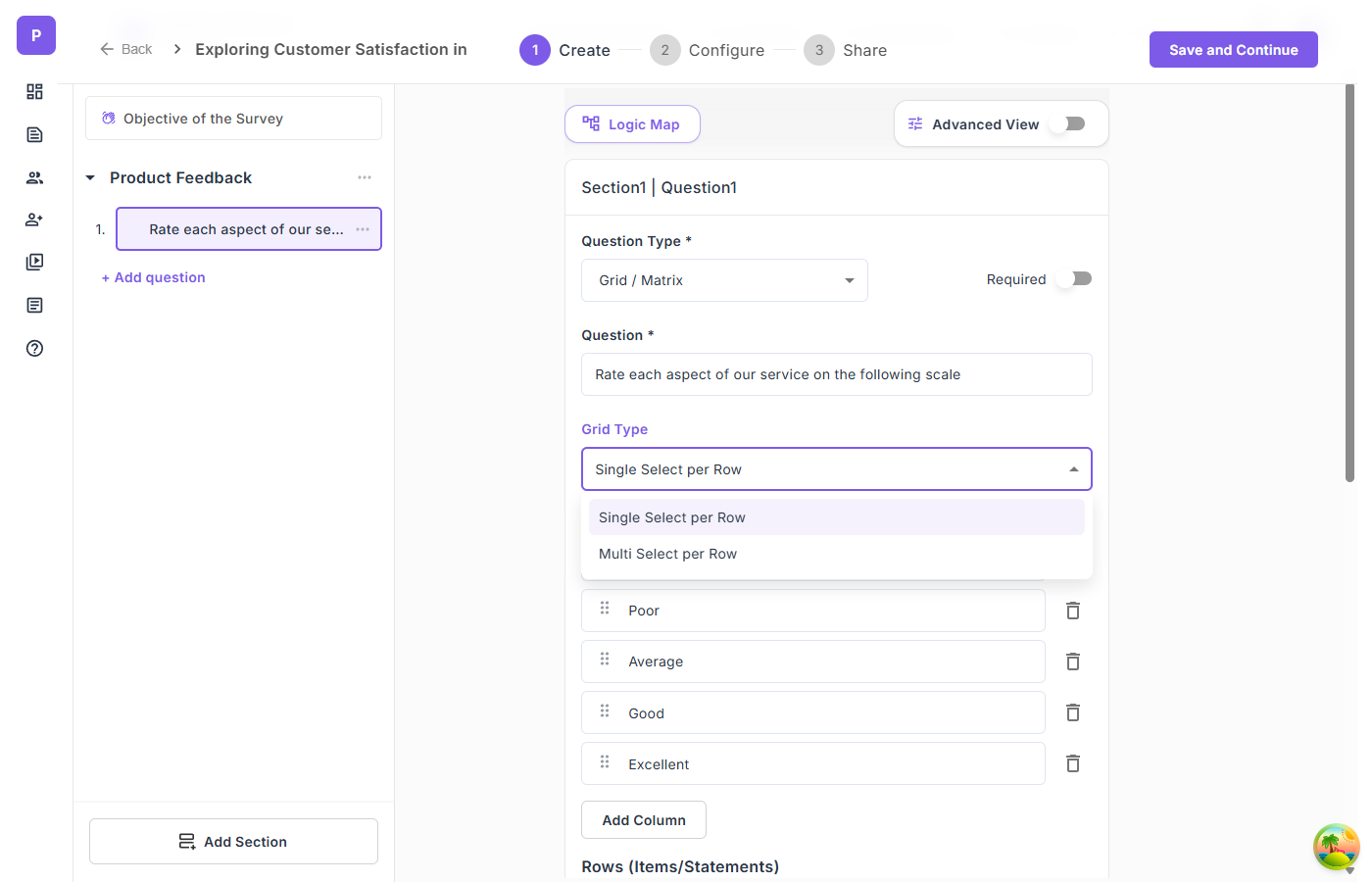
Step 3: Define Columns (Scale/Options)
Columns define your rating scale or set of options. Enter each column label and click Add Column for more.
Example scales:
- Satisfaction: "Very Dissatisfied", "Dissatisfied", "Neutral", "Satisfied", "Very Satisfied"
- Agreement: "Strongly Disagree", "Disagree", "Neutral", "Agree", "Strongly Agree"
- Quality: "Very Poor", "Poor", "Average", "Good", "Excellent"
Step 4: Define Rows (Items/Statements)
Rows represent the items or statements participants will evaluate. Enter each row label and click Add Row for more.
Example rows:
- "Customer Support", "Product Quality", "Delivery Speed", "Website Experience"
Step 5: Preview the Grid
The builder shows a live Preview section below the row/column configuration, so you can see exactly how the grid will appear to participants.
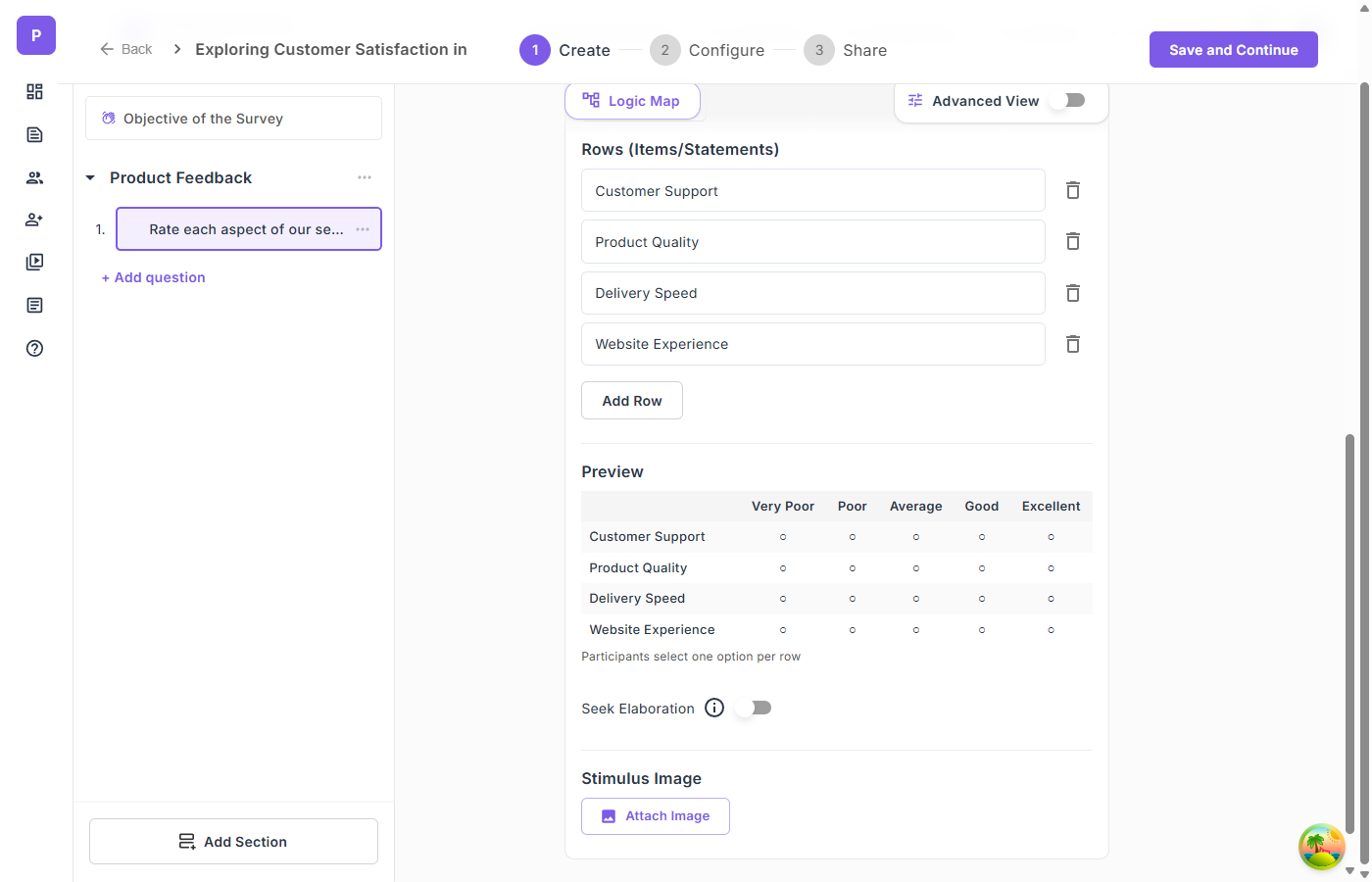
The preview displays the full table with columns as headers and rows as labeled entries, with radio buttons (single-select) or checkboxes (multi-select) at each intersection.
Ranking Questions
Ranking questions ask participants to order a list of items by preference, importance, or priority. This reveals not just what participants value, but how they prioritize competing options.
When to Use Ranking Questions
- Feature prioritization — Understand which product features matter most
- Preference ordering — Determine relative preferences among options
- Resource allocation — Learn how participants would prioritize investments or efforts
How to Create a Ranking Question
Step 1: Select Ranking Question Type
In the survey builder, click the Question Type dropdown and select Ranking.
Step 2: Enter the Question Text
Write a clear prompt that tells participants what to rank and by what criteria.
Example: "Rank the following features by importance to you"
Step 3: Add Items to Rank
Enter the items participants will order. Click Add Item to add more entries. Each item has a drag handle for reordering in the builder.
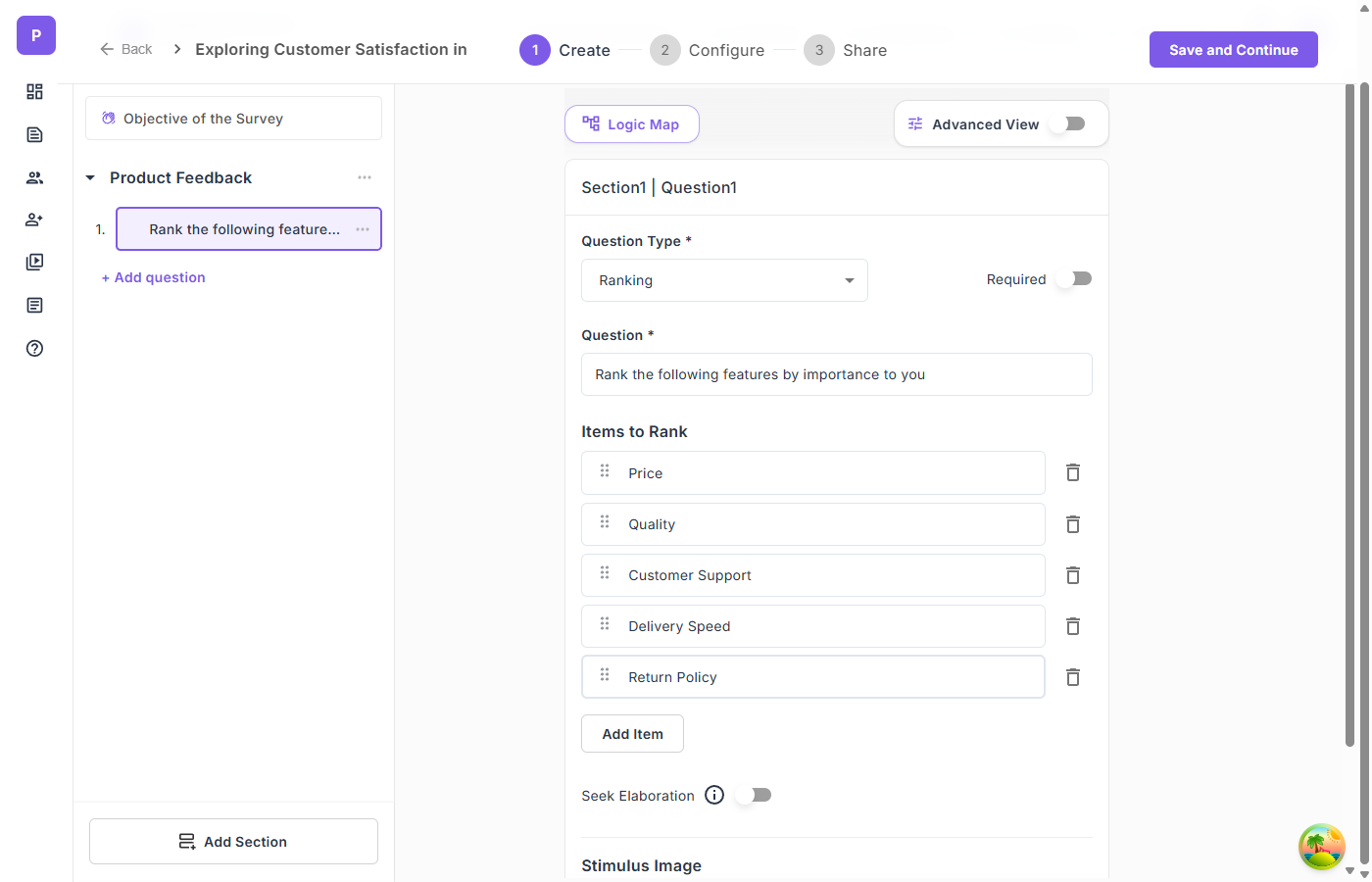
Participant Experience
When participants encounter a ranking question, they can reorder items using two interaction modes:
- Drag and drop — Click and drag items to rearrange their order
- Tap to rank — Click items to assign ranks sequentially
The first item in the list represents the highest rank (Rank 1).
Tips for Grid and Ranking Questions
- Keep grid columns to 5-7 options to avoid horizontal scrolling on mobile devices
- Limit ranking items to 5-8 to prevent participant fatigue
- Use clear, concise labels for both rows and columns in grid questions
- Mark questions as Required if responses are essential to your analysis
- Add a Stimulus Image to provide visual context for what participants are evaluating