How to Add Stimulus Images to Questions
Stimulus images allow you to attach visual content directly to any survey question. This is especially useful when participants need to evaluate product designs, ad concepts, packaging mockups, or any visual material as part of their response.
What Are Stimulus Images?
A stimulus image is a picture attached to a specific question that displays alongside the question text. Unlike a general survey banner or header image, stimulus images are tied to individual questions, giving participants visual context for what they are being asked about.
Common Use Cases
- Product design feedback — Show mockups or prototypes alongside rating questions
- Ad concept testing — Display advertisement variations for participants to compare
- Packaging evaluation — Present packaging options for preference selection
- Brand perception — Show logos or brand materials alongside open-ended questions
- User interface testing — Display screenshots of UI designs for usability feedback
How to Add a Stimulus Image
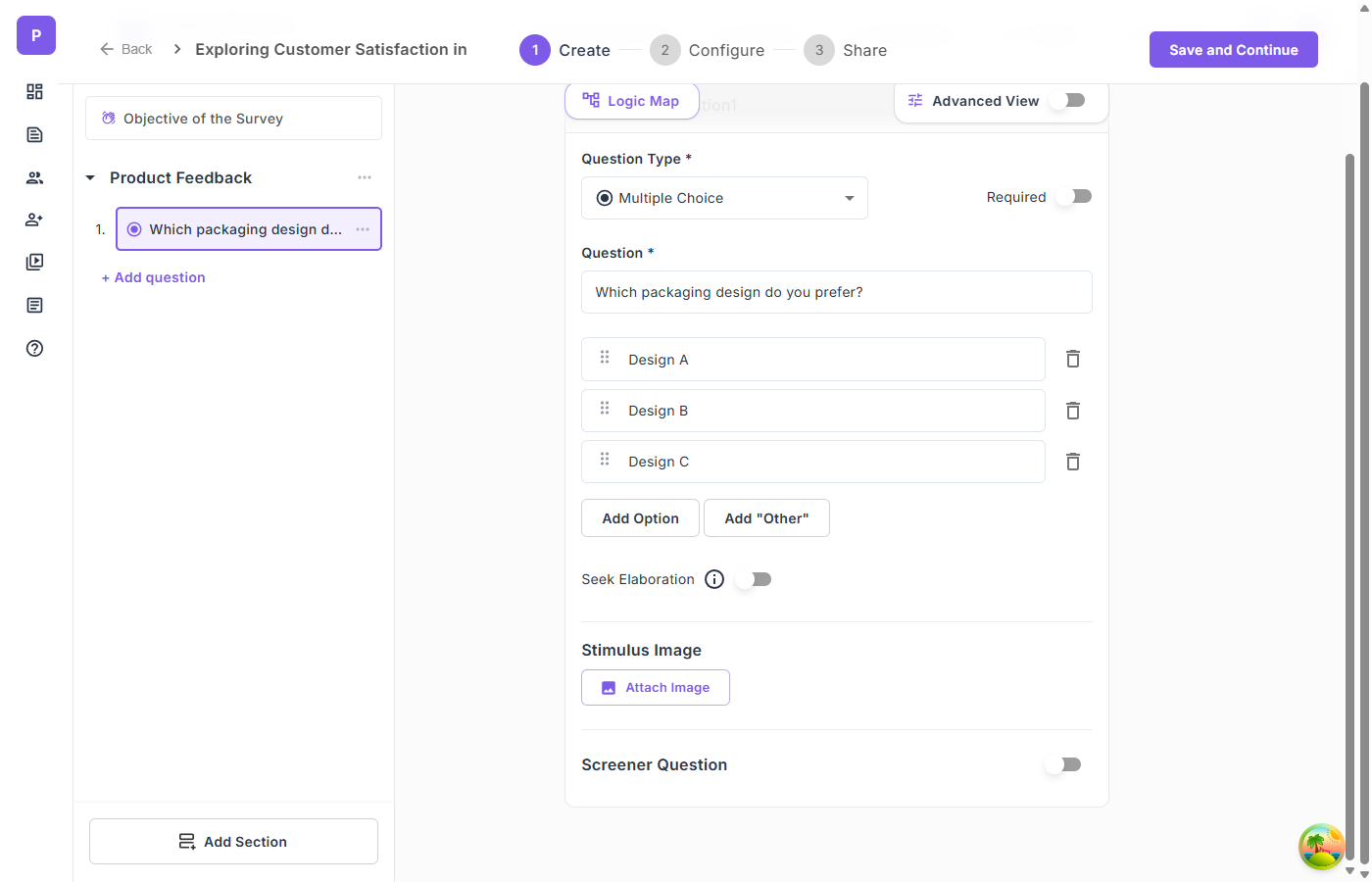
Step 1: Locate the Stimulus Image Section
In the survey builder, scroll down below the question options and the Seek Elaboration toggle. You will find the Stimulus Image section with an Attach Image button.
Step 2: Upload Your Image
Click the Attach Image button to upload an image file. Supported formats include PNG, JPG, and other common image types.
The image is stored at the question level, meaning each question can have its own unique stimulus image.
Step 3: Choose Image Placement
You can control where the image appears relative to the question text:
- Above the question — The image displays before the question text, establishing visual context first
- Below the question — The image appears after the question text, supporting the written prompt
Step 4: Preview
Use the Preview button in the top navigation bar to see how your stimulus image will appear to participants. The image renders responsively, adjusting to different screen sizes.
Tips for Using Stimulus Images
- Use high-quality images that are clear and easy to interpret at various screen sizes
- Keep file sizes reasonable to ensure fast loading, especially for mobile participants
- Add descriptive alt text for accessibility when possible
- Combine with relevant question types — Stimulus images work with all question types including Multiple Choice, Grid/Matrix, Ranking, and Open Ended
- One image per question — Each question supports a single stimulus image. If you need to show multiple images, consider using separate questions or combining images into a single comparison visual
How Stimulus Images Appear in Analysis
When reviewing survey analysis, stimulus images are displayed alongside the question results. This helps researchers quickly recall the visual context when interpreting participant responses.